
Free SMS QR Code Generator
Link phone number to send a text message quicker
To enable tracking,

Despite the rise of multimedia-rich communication platforms like WhatsApp and Telegram, SMS continues to be the most effective channel for businesses, boasting an impressive 98% open rate.
For businesses, using SMS for customer communication and standardizing messaging for response tracking is essential.
In this context, QR codes that launch the SMS app with a pre-filled message and number prove to be incredibly useful.
Let’s learn what SMS QR Code is and how to create one.
What is SMS QR Code?
SMS QR code is a type of QR code that, when scanned, automatically opens the user’s messaging app with a pre-filled text message and recipient number. It simplifies communication by removing the need to type messages or the recipient’s number manually.
Businesses, NGOs, and event organizers use SMS QR codes for customer feedback, event RSVPs, volunteer signups, emergency alerts, and promotions, making engagement faster and more convenient for users.
How to create your SMS QR Code
Follow these simple steps to create your SMS QR Code.
Step 1: Go to The QR Code Generator
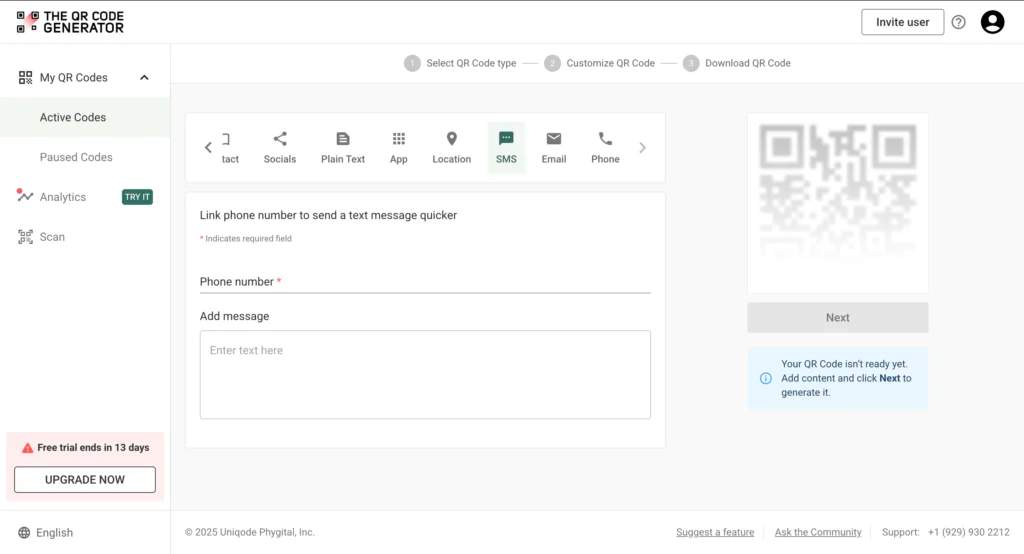
Sign-up to The QR Code Generator platform using your Gmail, Microsoft, or corporate email id.
After you sign-up, you’ll see the dashboard with options to create QR Codes for various content types.
Click on the tool’s navigation arrow (“>”) and select the SMS tab to create an SMS QR Code.
Step 2: Enter details
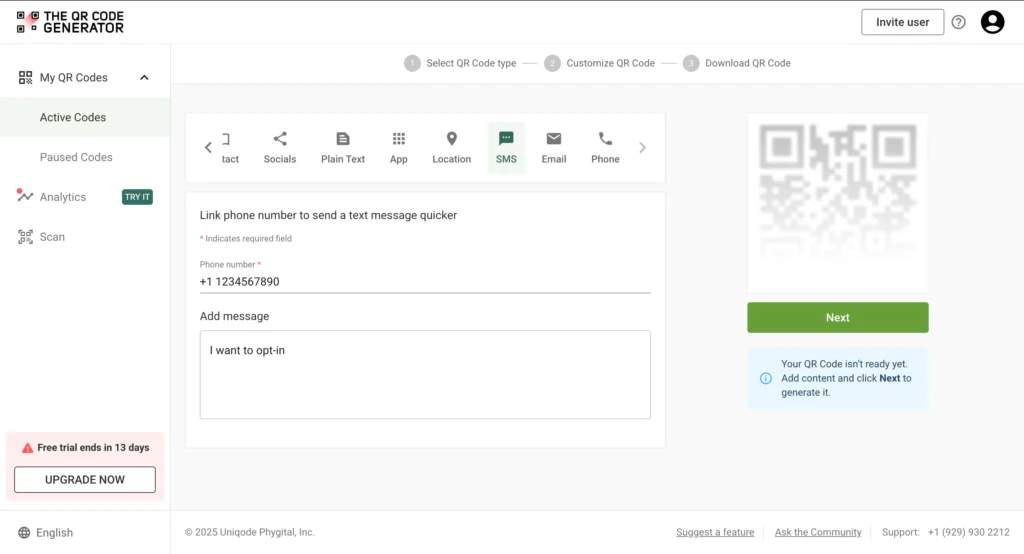
You’ll notice two input fields here:
- Phone number
- Message area
Enter the phone number and the message you’d want to send to the number provided.
While there is no restriction on the length of the message you can input, it is recommended to keep the message under 160 characters for sending one SMS per scan. Otherwise, the scanner’s messaging app may convert the text into multimedia message or split it across multiple SMS series.
After entering these details, click “Next” to generate your SMS QR Code.
Step 3: Customize your QR Code
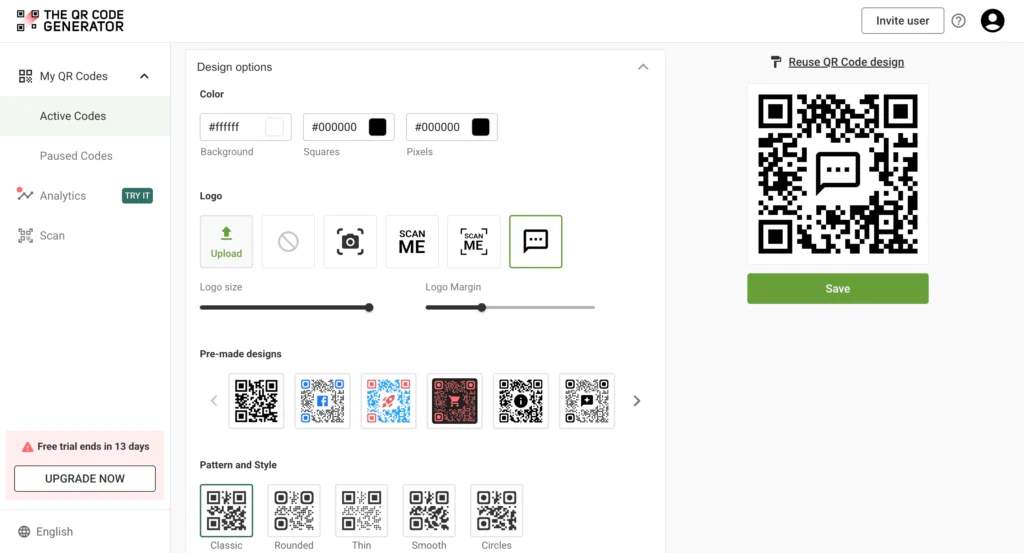
You can change colors, patterns, or styles or add a logo to your SMS QR Code for branding. After you have customized your QR to your liking, click “Save.”
However, this step is optional, and without these modifications also your QR Code will function seamlessly. If you choose to skip customization, still click “Save” to save the QR you created and download it.
Step 4: Test your QR Code
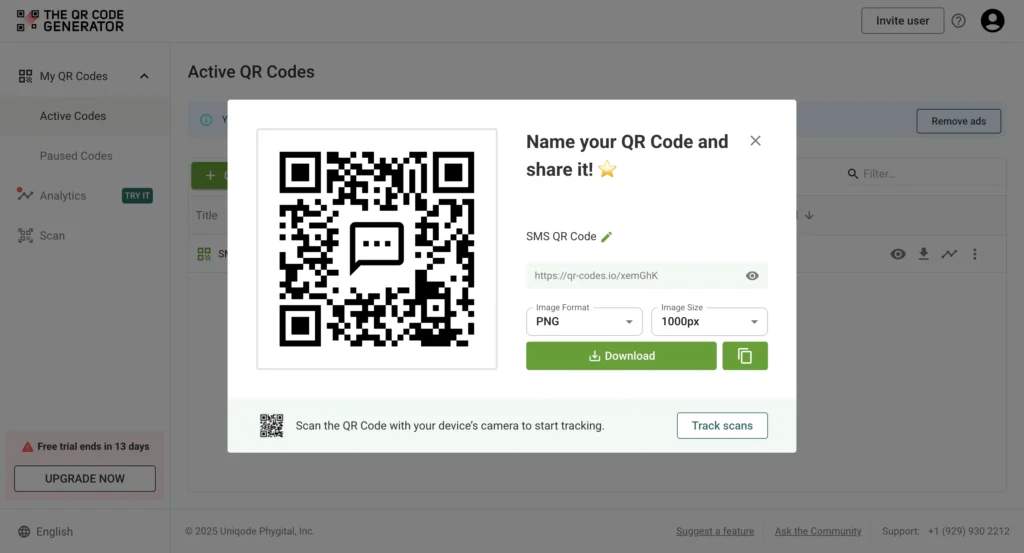
After you click “Save” you’ll notice a pop-up that previews your QR code and prompts you to download it.
At this point, you can test if your QR code is working properly or not by pointing your camera at the QR code.
Normally, when you scan an SMS QR code, your camera detects the code and displays a prompt. Tapping it opens your messaging app with the recipient’s phone number and a pre-filled text message. You should be able to review or edit the message before sending it.
If the QR code you generated doesn’t act the prescribed way, check if the phone number entered is correct. If you have created a dynamic QR code, you should be able to change the details without changing the QR code itself. But if you created a static QR Code, you’ll need to create a new one. You can read more about the difference between static and dynamic QR codes.
Step 5: Download your SMS QR Code
In the same pop-up, you can download your QR in PNG or SVG format. You can also choose the image size.
If you plan to use your QR on print material, choose SVG. For publishing it on digital media, PNG should do.
If you want to download your QR code later, you can always access it from your dashboard.
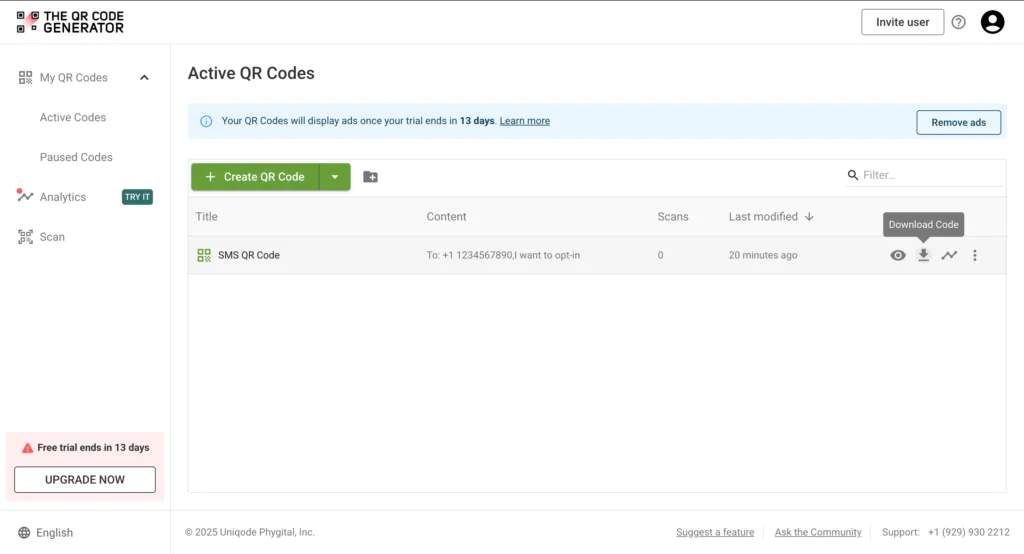
All you need to do is go to your dashboard and click on The QR Code Generator logo. You’ll find a list of QR codes you created. (You can also select “My Codes” and “Active Codes” from the left panel.)
Then, click the “Download” icon and a pop-up will appear with options to download your QR in various sizes and formats.
The next section will give you an overview of how companies utilize SMS QR Codes in various contexts.
SMS QR Code use cases
1. Customer support and feedback
Use case: Allow customers to instantly send feedback or request support.
Example: A restaurant places an SMS QR code on tables:
“Scan to send us your feedback!” → Auto-fills a message like “I had a great experience at [Restaurant Name]!”
(Customers can also edit the text from their messaging app if they want)
2. Event registration and RSVPs
Use case: Quick confirmation for event attendees.
Example: Companies can use QR codes on invitations:
“Scan to RSVP” → Sends an SMS: “I confirm my attendance at [Event Name] on [Date].”
3. Nonprofit donations and volunteer signups
Use case: Simplify donor or volunteer engagement.
Example: A charity adds an SMS QR code to posters:
“Scan to volunteer!” → Sends an SMS: “I’d like to volunteer for [Organization Name].”
4. Emergency and safety alerts
Use case: Quick access to emergency contacts or reporting issues.
Example: A school places a QR code on campus:
“Report safety concerns here” → Sends a message to security: “Urgent: I witnessed [Incident] at [Location].”
5. Sales and promotions
Use case: Boost engagement with marketing campaigns.
Example: Retail stores place an SMS QR code in ads:
“Scan to get a discount!” → Sends a text: “I want my 10% discount!”