
How To Add a QR Code to an Invitation the Right Way

Kritika
Last updated: February 13, 2026
6 min read
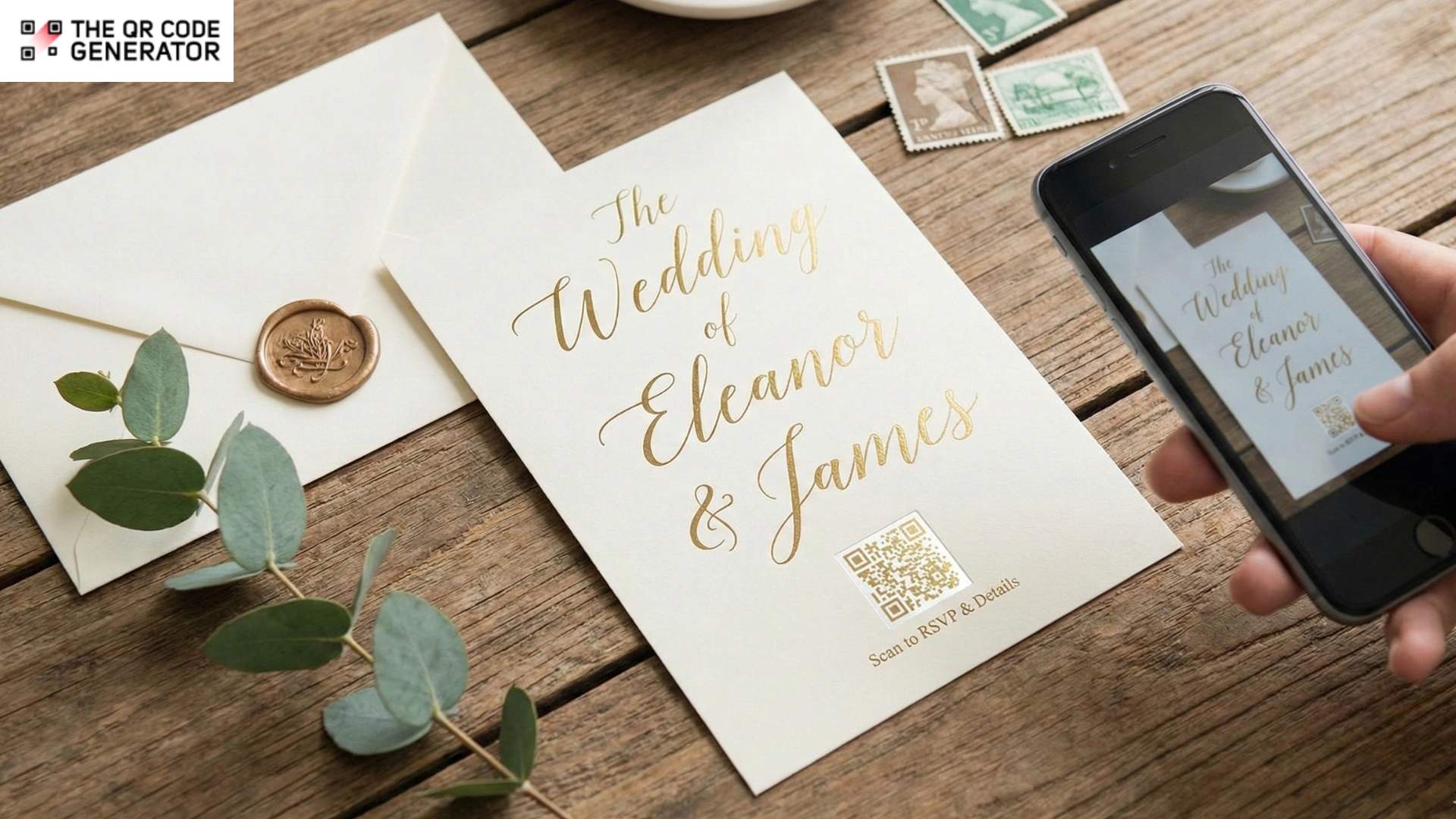
Your invitation design is perfect. The colors match your event theme, the fonts are elegant, and every detail reflects your vision. Then you start adding venue information, RSVP instructions, and a website link, and suddenly your clean design becomes cluttered with tiny text nobody wants to read.
Traditional invitations struggle to maintain a balance between design and information. An invitation with a QR Code solves this. Guests scan once with their smartphone camera and go directly to your RSVP form, event website, venue map, or any other digital resource.
But there’s the catch. Poorly placed or badly designed QR Codes get ignored just as often as typed URLs.
To understand why QR Codes solve these challenges and how to create QR Codes that integrate well with your invitation design, let’s first examine what makes traditional invitation methods so limiting.
Why traditional invitations fall short
Traditional invitations create three persistent problems.
First, limited card space means critical details like parking information, accommodation suggestions, or dress codes get cut out or crammed into tiny fonts.
Second, long URLs such as “www.johnandmarywedding2025.theknot.com/rsvp” look clunky, and guests still have to manually type them into their browsers. Third, printed invitations can’t be updated after mailing, so a venue change requires contacting each guest individually.
Adding an invitation QR Code fixes all three issues. A small QR Code takes minimal space and maintains your design aesthetic. It also links to dynamic, updatable digital content that guests can access instantly. Understanding how to add them effectively starts with knowing where and how they improve the guest experience.
How invitation QR Codes improve guest experience
More hosts are discovering how QR Codes on invitations balance tradition with convenience. Here’s how they’re using them strategically.
QR Codes on RSVP cards
The most popular placement strategy is adding QR Codes to separate RSVP cards within invitation suites. Guests scan the QR Code and land directly on your response form, be it Google Forms, RSVPify, or your event website’s RSVP page.
This preserves the formal invitation’s design while enabling instant responses. QR Code RSVPs can automatically collect and organize event attendance data, eliminating the need for return envelopes and postage while giving you real-time response tracking.
For example, a wedding host can replace traditional mail-back RSVP cards with a QR Code that opens a mobile-friendly RSVP form where guests select meal preferences and dietary restrictions in seconds.
QR Codes on information cards
Multi-event celebrations such as wedding weekends and corporate retreats can use separate information cards with QR Codes linking to schedules, accommodation options, and activity details.
For example, a three-day destination wedding can use a single QR Code to link to itineraries, hotel blocks, restaurant recommendations, and transportation details that guests can bookmark and reference throughout the weekend. A corporate retreat might include an information insert with a QR Code linking to a live agenda page, allowing organizers to update session timings without reprinting materials.
QR Codes on the back of cards
Birthday invitations, baby shower invitations, and casual events often place QR Codes on the back of invitations, keeping the front designs pristine. For example, a child’s birthday invitation could keep playful artwork on the front while placing a QR Code on the back that opens a map link and party schedule, keeping essential details accessible without crowding the design.
Conference invitations can feature keynote speakers on the front while placing QR Codes on the back that link to full schedules and registration.
QR Codes for venue location
Location QR Codes link directly to Google Maps with your exact venue address. This proves especially valuable for destination weddings, outdoor venues, or rural locations where GPS accuracy varies. For instance, outdoor venues with multiple entrances can link directly to a pinned Google Maps location to prevent guests from navigating to the wrong area.
Now that you understand the strategic uses for invitation QR Codes, let’s walk through the technical process of creating and integrating them into your design.
How to add a QR Code to your invitation design
Creating invitation QR Codes requires attention to both technical and aesthetic details. Follow this systematic approach to ensure functionality while complementing your design vision.
Step 1: Choose your destination
Before generating any QR Code, decide exactly where guests should land:
- RSVP forms (Google Forms, RSVPify, event websites)
- Event websites with schedules and details
- Google Maps location for venue directions
- PDF documents with itineraries
- Video messages or photo galleries
- Gift registry links
Step 2: Sign up to The QR Code Generator (TQRCG)
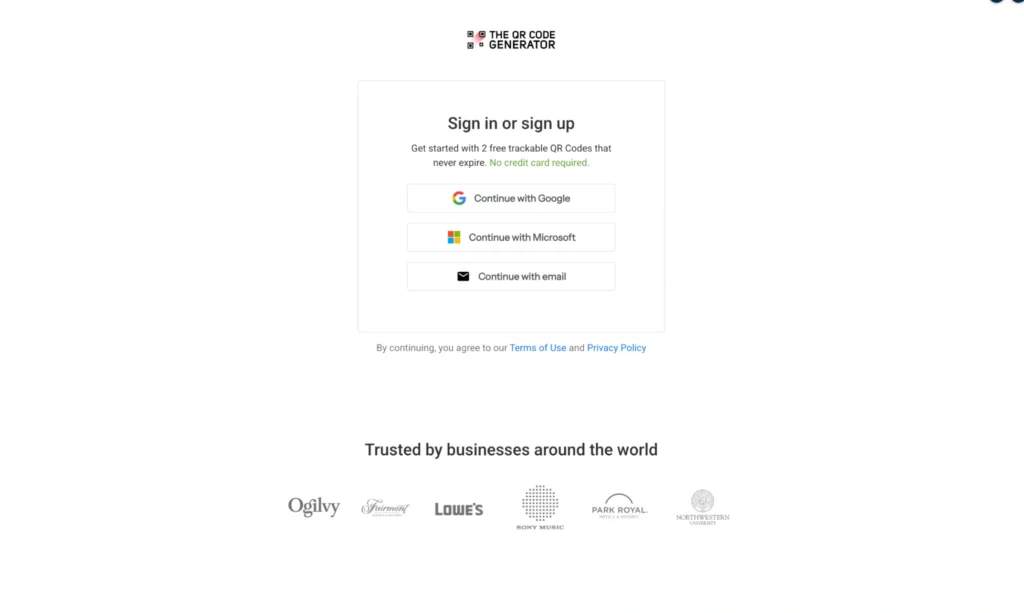
Log in to The QR Code Generator and select your QR Code type. Use URL QR Codes for RSVP forms and event websites, Location QR Codes for venue directions, or Multi-URL QR Codes (like we have here) to share multiple event details from one scan.
Step 3: Add your event information
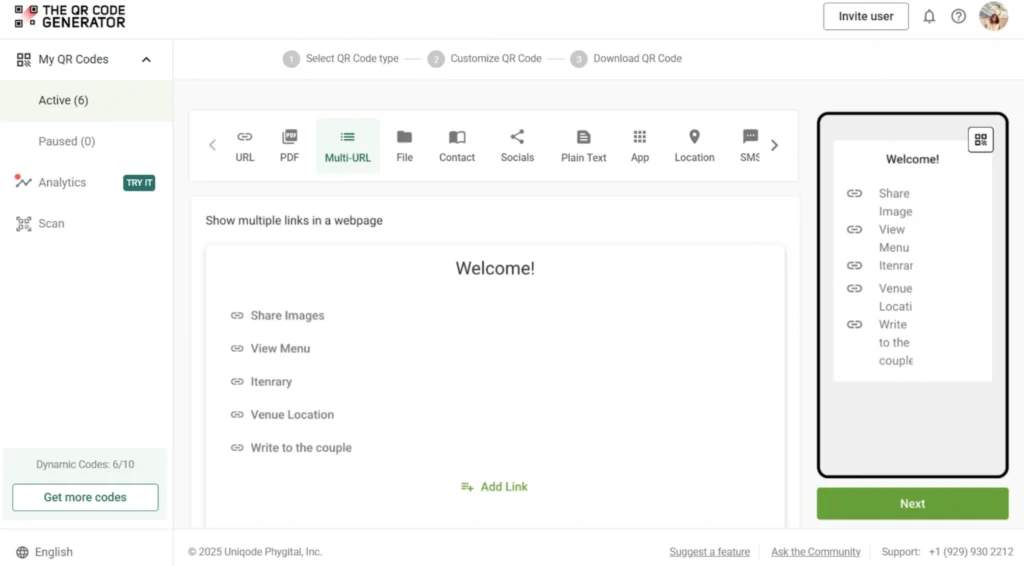
Enter the URL for your RSVP form, event website, or venue location. Popular options include Google Forms for RSVPs, wedding websites, or Google Maps links for directions.
Step 4: Customize with event theme
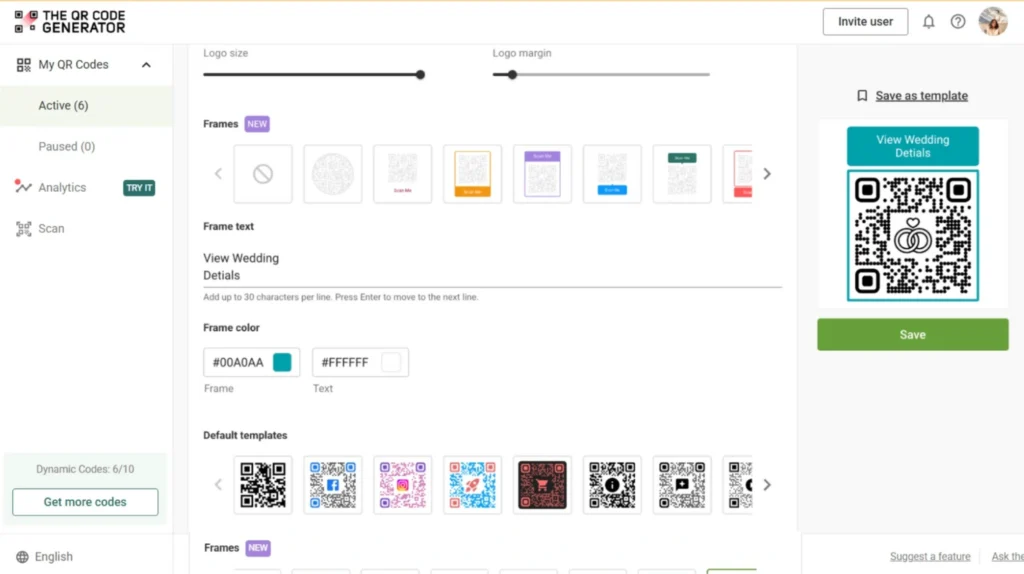
Design your QR Code with colors that match your invitation theme. Add your monogram or event logo and include QR Code frames with clear CTAs such as “Scan to RSVP” or “Scan for event details.”
Step 5: Download and add to invitations
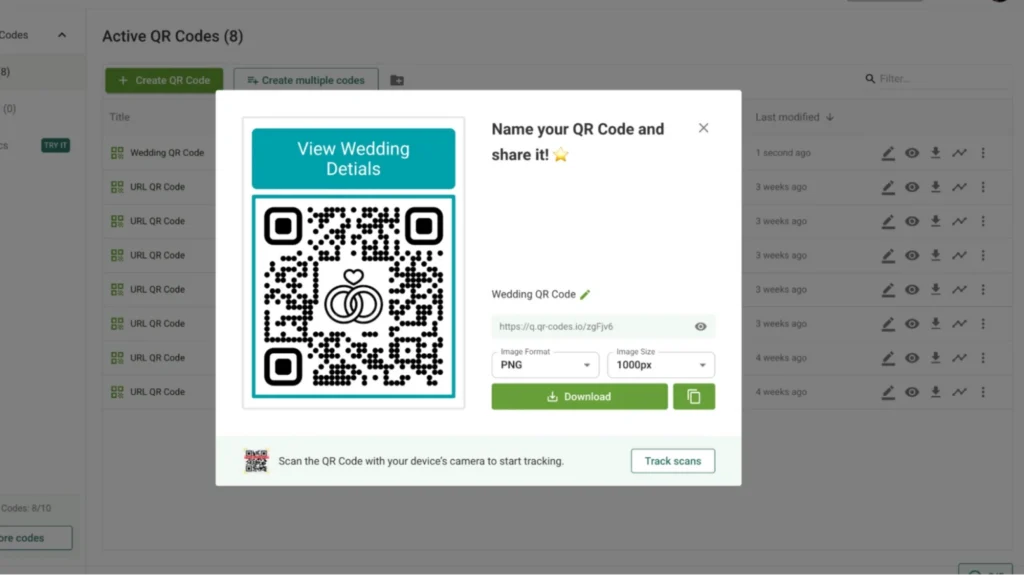
Download your QR Code in SVG format for professional printing to maintain resolution at any size. For home printing or digital invitations, use high-resolution PNG files (minimum 300 DPI).
Step 6: Place your QR Codes strategically
Once you are done with downloading and testing your QR Code, integrate it well with your existing invitation. Common placement options include:
- Wedding invitations: RSVP cards or information inserts
- Birthday invitations: back of the invitation
- Baby shower invitations: information cards with registry links
- Corporate invitations: back of the invitation or dedicated inserts
- Digital invitations: centered prominently
While these general principles apply to all invitation types, different events require specific approaches to match the formality level and guest expectations.
How QR Code strategy changes by invitation type
What works for a casual birthday party may feel inappropriate for a formal wedding. Each event type has unique considerations that determine where you place QR Codes, how you design them, and what information you link to.
| Invitation type | Placement best practice | What to link | Design tips | Key benefit |
|---|---|---|---|---|
| Wedding | Place on RSVP cards or info inserts (not main invite) | Wedding website, RSVP form, accommodations, registry | Keep design minimal and formal | Respects tradition while offering digital convenience |
| Birthday (Children/Casual) | On the main invite or info section | Party details, venue address, timings | Use bright colors and themed designs | Makes it easy for parents to access details |
| Baby shower | On invite or separate insert | Gift registry, parking info, game details | Soft colors, clear contrast | Simplifies gift planning and logistics |
| Corporate event | On printed invite, badge, or insert | Speaker lineup, schedule, event app | Match brand colors, ensure readability | Boosts pre-event engagement and preparedness |
Common mistakes to avoid while creating invitation QR Codes
Most QR Code invitation failures stem from a handful of preventable errors. Recognizing these mistakes before printing saves you from costly reprints and frustrated guests who can’t access your event information.
| Common mistake | Why it’s a problem | How to avoid it |
|---|---|---|
| Creating static QR Codes for invitations | Event details like venue, timing, or RSVP links often change after printing | Use dynamic QR Codes so information can be updated anytime |
| Placing QR Codes on decorative, dark, or patterned invitation designs | Wedding and party invitations often use textured or artistic layouts that reduce scannability | Reserve a clean, light section of the card for the QR Code |
| Skipping print and cardstock testing before bulk printing | Premium paper, foil finishes, or glossy cards interfere with phone cameras | Test scans on the final invitation stock before placing large orders |
| Making QR Codes too small to fit minimalist invitation layouts | Compact designs leave little space, making codes hard to scan | Keep QR Codes at least 1 × 1 inch or add a separate info insert |
| Adding QR Codes without explaining their purpose | Guests may not know whether the code is for RSVP, directions, or registry | Include short text like “Scan to RSVP” or “Scan for venue details” |
| Over-customizing QR Codes to match invitation themes | Matching colors and patterns often reduces contrast and reliability | Keep designs simple and prioritize scannability |
| Placing QR Codes where guests may overlook them | Codes hidden on backs or corners are easy to miss | Position QR Codes near RSVP or event information sections |
Make your invitations interactive without adding clutter
Your invitation doesn’t have to choose between elegance and functionality. With thoughtfully placed QR Codes, you can keep your design clean while giving guests instant access to RSVP forms, schedules, maps, and event details that would otherwise clutter your layout.
The key is balance. Use QR Codes strategically, prioritize scannability over heavy customization, and match placement to the formality and purpose of your event. When done well, a small QR Code becomes a bridge between your printed design and a richer digital experience.
Ready to bring your invitation to life? Sign up to create your first invitation QR Code with The QR Code Generator and turn static designs into interactive experiences guests can access with a single scan.
Frequently Asked Questions
How do I add a QR Code to my invitation design?
Generate your QR Code in The QR Code Generator, download it as a PNG or SVG, then upload it to your design software (Canva, Adobe Illustrator, Microsoft Word). Position with adequate white space around all sides and maintain a minimum 1 × 1 inch size.
Should I use static or dynamic QR Codes?
Always choose dynamic QR Codes for events. They let you update destinations after printing if plans change. Static QR Codes cannot be modified once generated.
Where should I place the QR Code on a wedding invitation?
Place on separate RSVP cards or information inserts to keep the main invitation pristine. Alternatively, use the back of the invitation. Avoid front placement on formal wedding invitations.
What should invitation QR Codes link to?
Most link to RSVP forms, event websites, venue location maps, or landing pages containing accommodation information and schedules. Choose based on what guests need most urgently.
How large should a QR Code be on printed invitations?
QR Codes should be at least 1 × 1 inch (2.5 × 2.5 cm) for printed invitations. For digital invitations, use 1.5 × 1.5 inches or larger because recipients scan from screens.
Can I customize QR Code colors?
Yes, but maintain high contrast, meaning dark code on light backgrounds. Avoid low-contrast combinations, such as rose gold on cream. Always test customized QR Codes extensively before printing.