
Free Google Form QR Code Generator
Redirect to a Google Form
To enable tracking,

Google Forms has 47.24% of the market share in the survey tools category, according to the 6sense database.
Unfortunately, the use of Google Forms is limited to digital space because users find it tedious to type in the URL (web link) they see in physical settings.
The solution exists. Google Form links can be converted into QR codes, which can easily be placed on physical mediums like billboards, brochures, flyers, kiosks, etc. However, only a few people are aware of this, as only 1.02% of Google Forms are accessed through QR codes.
In this guide, we’ll walk you through the step-by-step process to create a Google Form QR code, which you can use to collect feedback, RSVPs, or leads. Let’s start with the basics.
What is a Google Form QR Code?
A Google Form QR code is a type of scannable qr code that links directly to a Google Form. When someone scans the QR code with their smartphone or tablet, they are instantly taken to the Google Form without the need to type in a URL manually.
QR codes for Google Forms are often used to simplify access to forms in physical or digital spaces. They are a convenient tool for gathering responses for surveys, event registrations, feedback forms, or any other type of data collection.
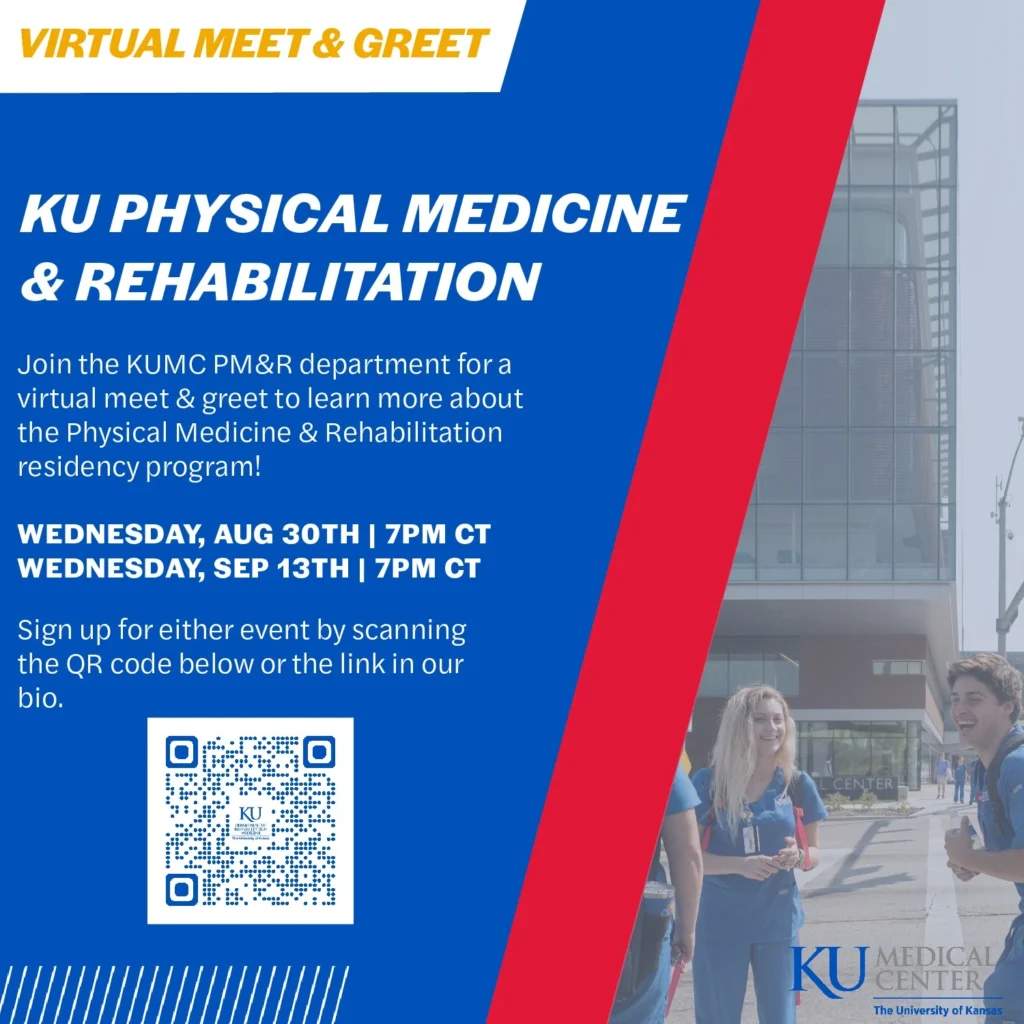
For example, the University of Kansas, one of the oldest universities in the United States, uses Google Forms QR codes for event registrations.
What information can be shown in a Google Form QR Code?
You can provide the following information when someone scans a Google Form QR code:
- Direct link to your Google Form for easy access to surveys, feedback forms, event registrations, or other purposes.
- Form title or purpose that users see upon opening the form, such as “Customer Satisfaction Survey,” “Net Promoter Score (NPS) Survey,’ or “Event RSVP.”
- Embedded questions and input fields for users to complete directly after scanning the code.
- Custom call-to-action messages (if generated dynamically), like “Scan to Share Your Feedback” or “Join Our Event.”
How to create a Google Form QR Code
Here’s a step-by-step guide on how to create a Google Form QR code.
Step 1: Locate your Google Form link
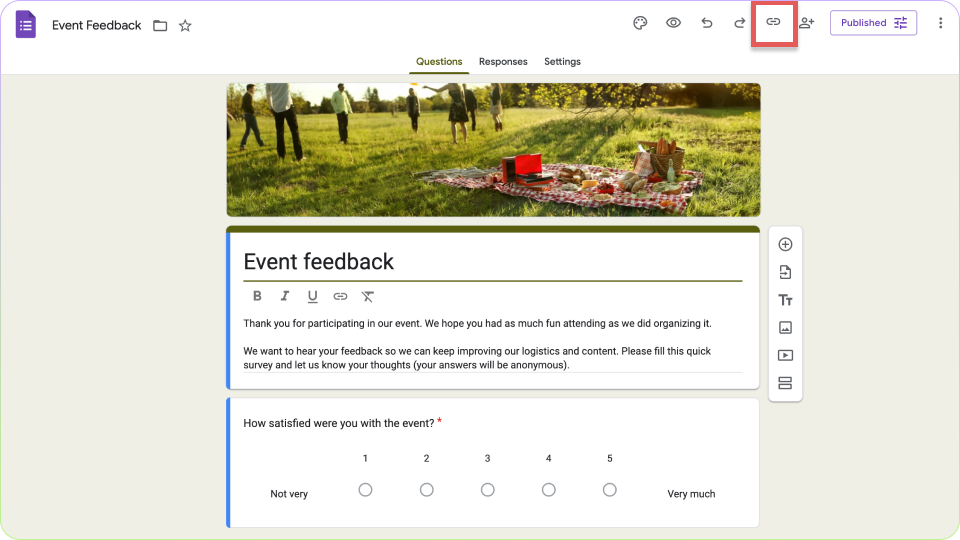
Open your Google Form in your browser. You can type your form name in the search bar to locate your form, or you can view it in the “Recent forms” section.
Then, open the Google form for which you want to create a QR code. Click on the link icon (a chain symbol) to generate a shareable URL.
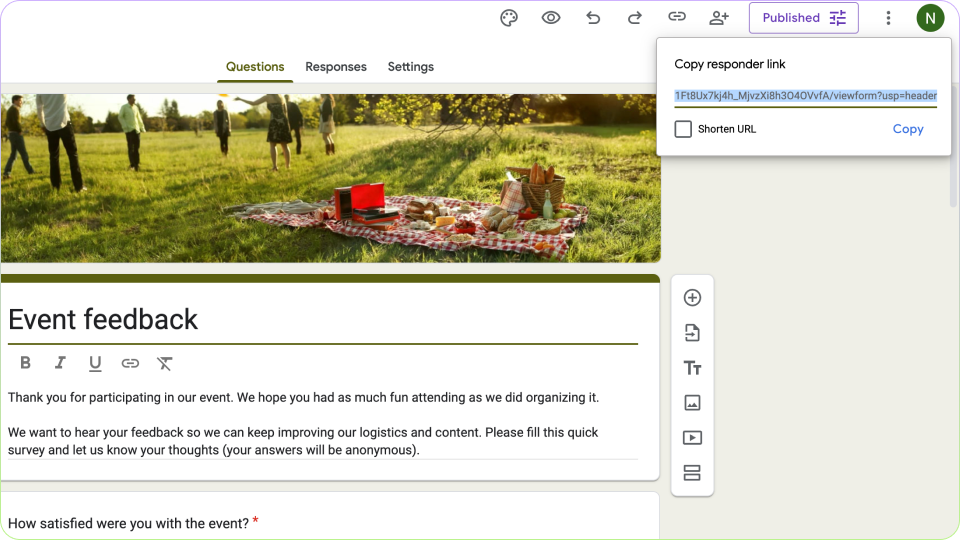
Copy the link from the dialogue box. You can either click on the Copy button, or press “command + c” to copy the link.
Step 2: Open The QR Code Generator
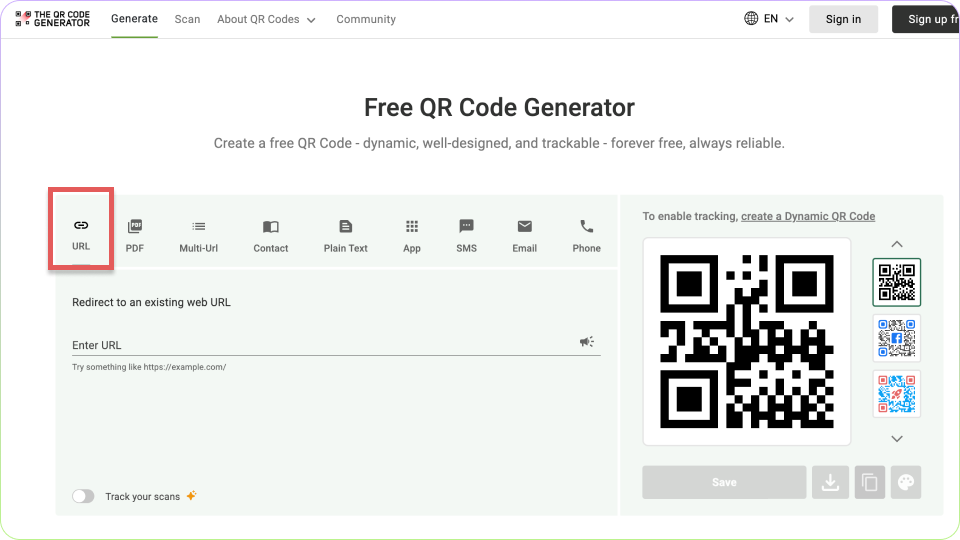
Go to The QR Code Generator.
Choose the “URL” option as the content type (usually selected by default).
Step 3: Paste your Google Form link
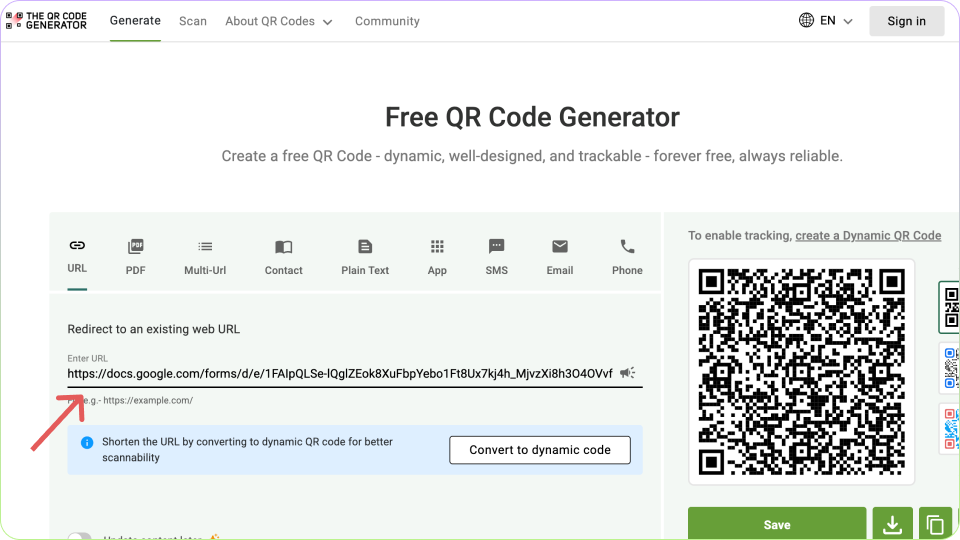
Paste the copied Google Form URL into the provided field. The QR code tool will automatically generate a QR code preview based on the link.
Step 4: Customize your QR Code
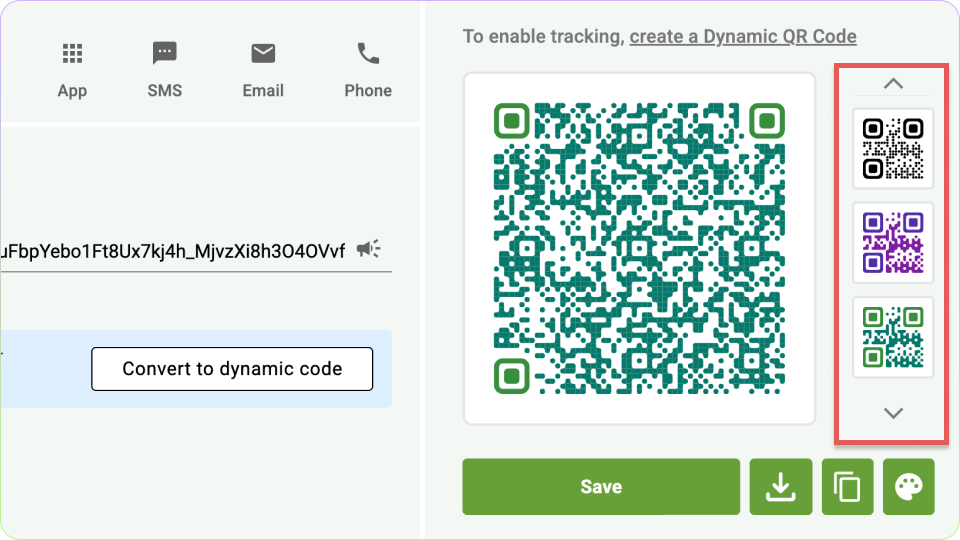
Design the QR Code:
- Select a color scheme that complements your branding.
- Add a logo or icon (e.g., your organization logo) to make the QR code recognizable.
Adjust Shape and Style:
- Modify the frame, corners, and patterns to suit your branding or campaign.
Step 5: Test your QR Code
Scan the QR code using a smartphone or QR code scanner. Ensure it redirects correctly to your Google Form and loads without issues.
Step 6: Download the QR Code
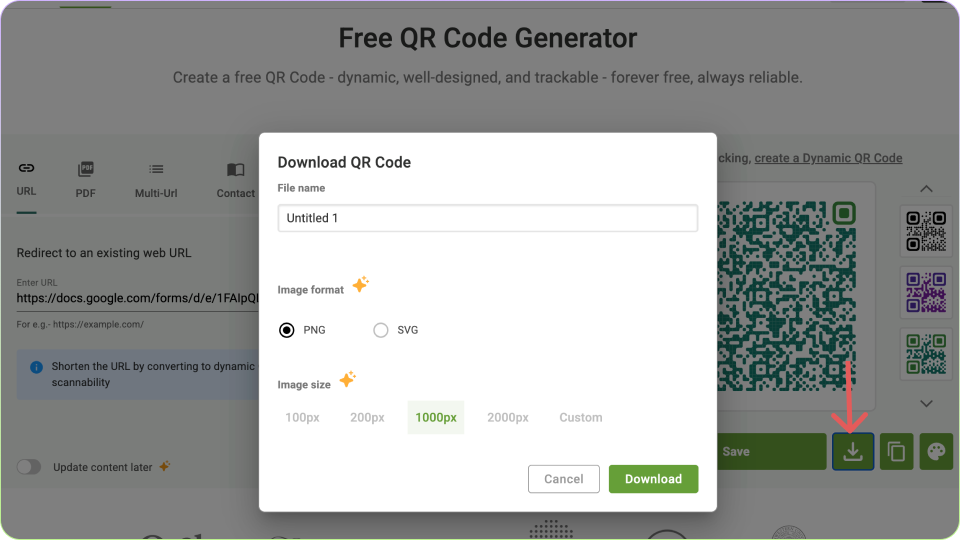
Choose the appropriate file format based on your needs:
- PNG: Perfect for online use or printing in smaller sizes.
- SVG/EPS: Ideal for high-quality prints on larger materials.
Click the Download button to save the QR code to your device.
Step 7: Deploy your Google Form QR Code
Add your QR code to:
- Posters, flyers, or brochures for physical campaigns.
- Presentation slides, business cards, or event materials.
- Emails, newsletters, or social media posts.
Also, don’t forget to include a clear call-to-action (CTA), such as:
- “Scan to Fill Out the Form!”
- “Help Us Improve – Scan Here!”