
How To Scan a QR Code on Your Computer (Windows and Mac)

Harshajit
Last updated: July 21, 2026
9 min read
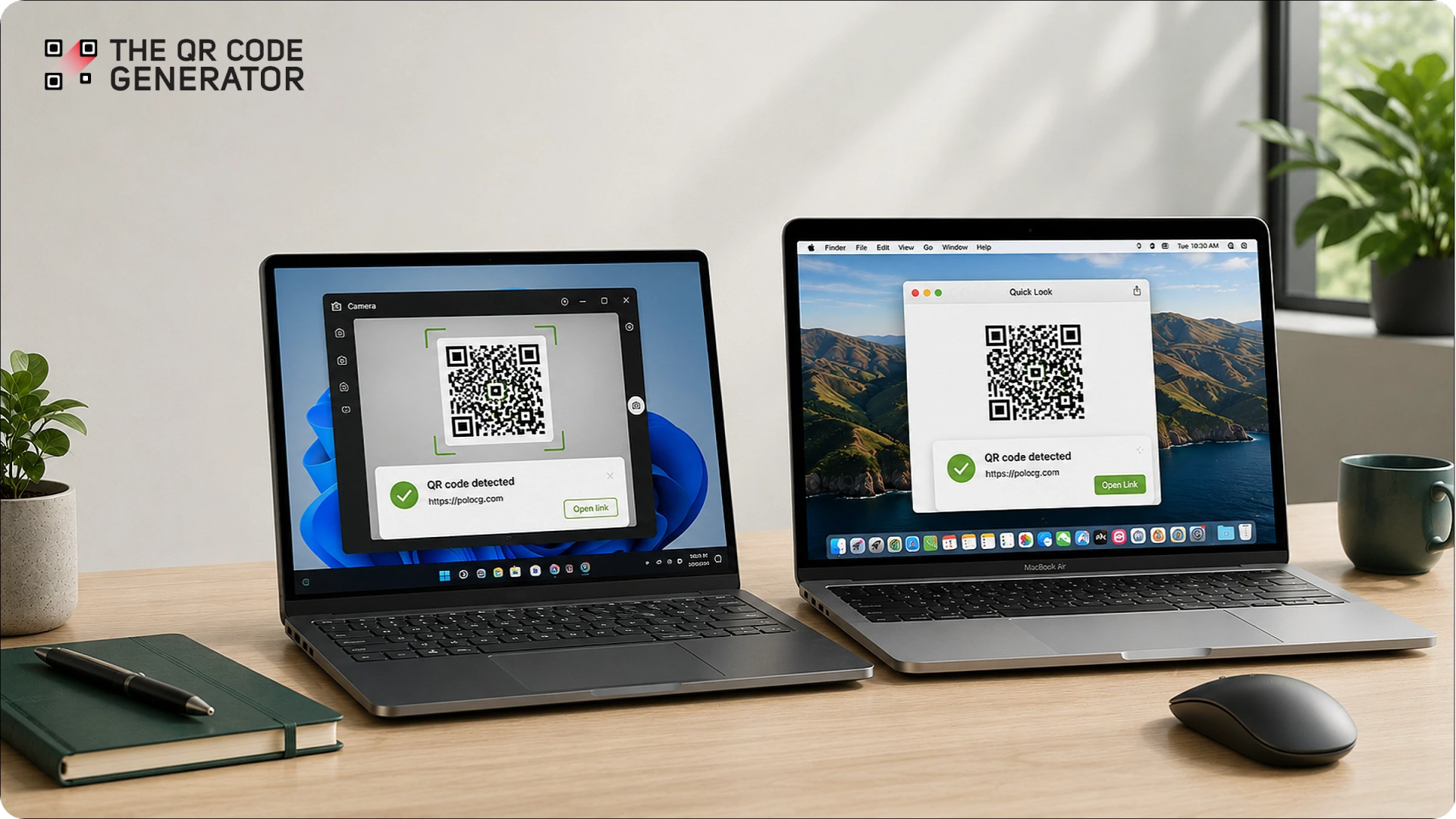
Many people think QR Codes can only be scanned with a mobile device. So, when a QR Code is shared and viewed on a computer, people switch devices.
The good news is that you don’t have to.
Both Windows and Mac offer simple ways to scan QR Codes directly on your computer. You can use your webcam for physical QR Codes, scan screenshots and image files, or decode on-screen QR Codes using built-in tools and browser features.
In this guide, you’ll learn exactly how to scan a QR Code on your computer, step by step, on both Windows and Mac.
How to scan a QR Code on Windows
If you use Windows 10 or Windows 11, you already have a few built-in ways to scan a QR Code. The easiest option depends on whether the QR Code is printed, on another screen, or saved on your computer.
Method 1: Use the Windows Camera app for physical QR Codes
If the QR Code is printed or displayed on another device, the Windows Camera app is the fastest way to scan it.
It works on both Windows 10 and Windows 11, as long as your computer has a webcam or built-in camera.
Here’s how you can scan a QR Code via the Windows Camera app:
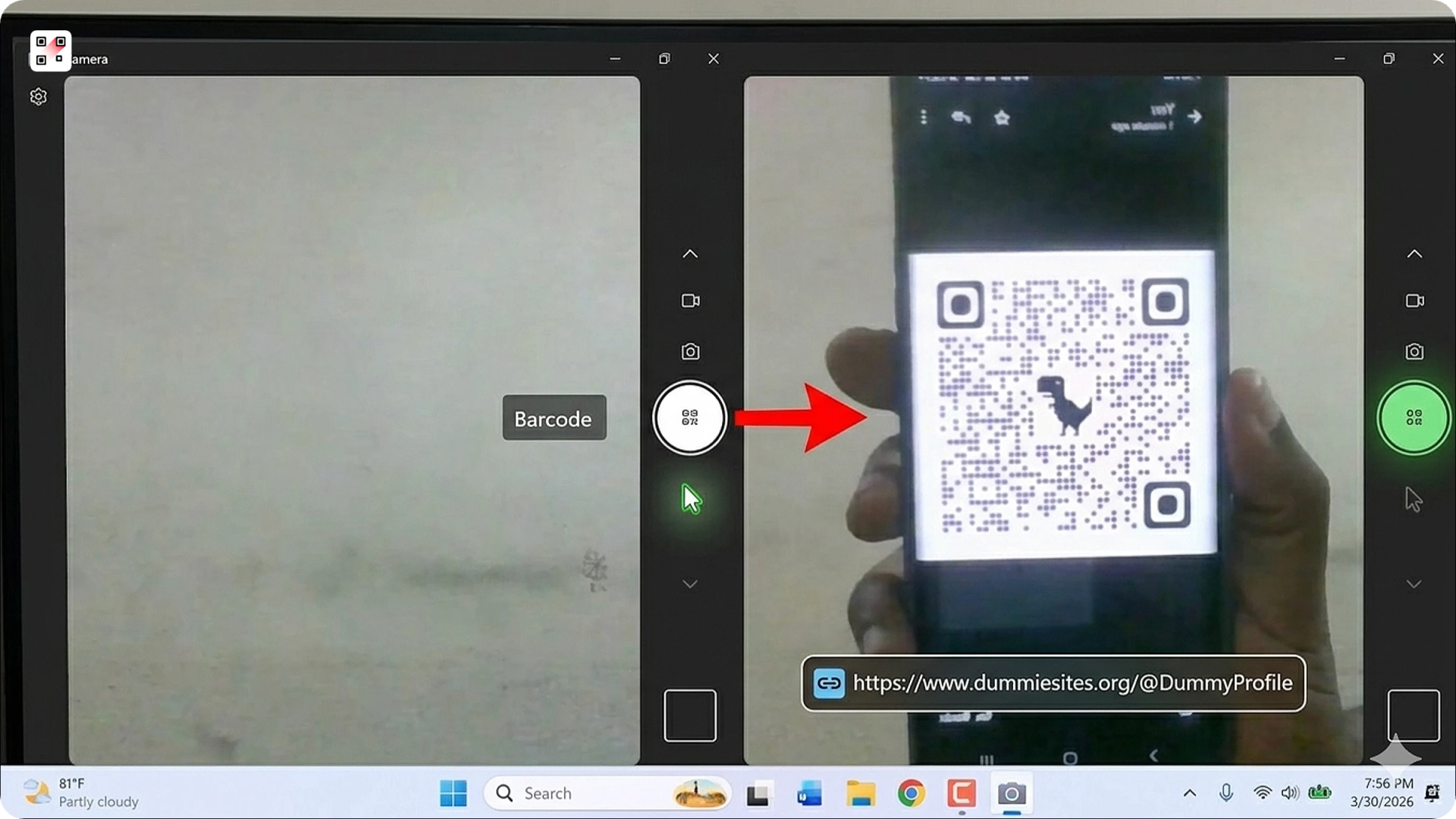
- Open the Camera app on your Windows computer
- Click the Barcode icon on the right side of the app
- Hold the QR Code in front of your webcam
- Open the link appearing at the bottom of the screen
Limitation: This method only works with a live camera feed. It cannot scan QR Codes saved as images or screenshots on your computer.
Note: Microsoft users note that some Windows versions may not show the Barcode option.
If you don’t see the Barcode button:
- Open Camera Settings
- Enable “Try out new experimental features”
- Restart the app and follow the steps above
Method 2: Use the Windows 11 Snipping Tool for on-screen QR Codes
If the QR Code is already on your screen, the Windows 11 Snipping Tool gives you one of the easiest ways to open it.
Unlike the Camera app, this method does not need a phone, webcam, or extra software download.
Here’s how to scan a QR Code using Snipping Tool:
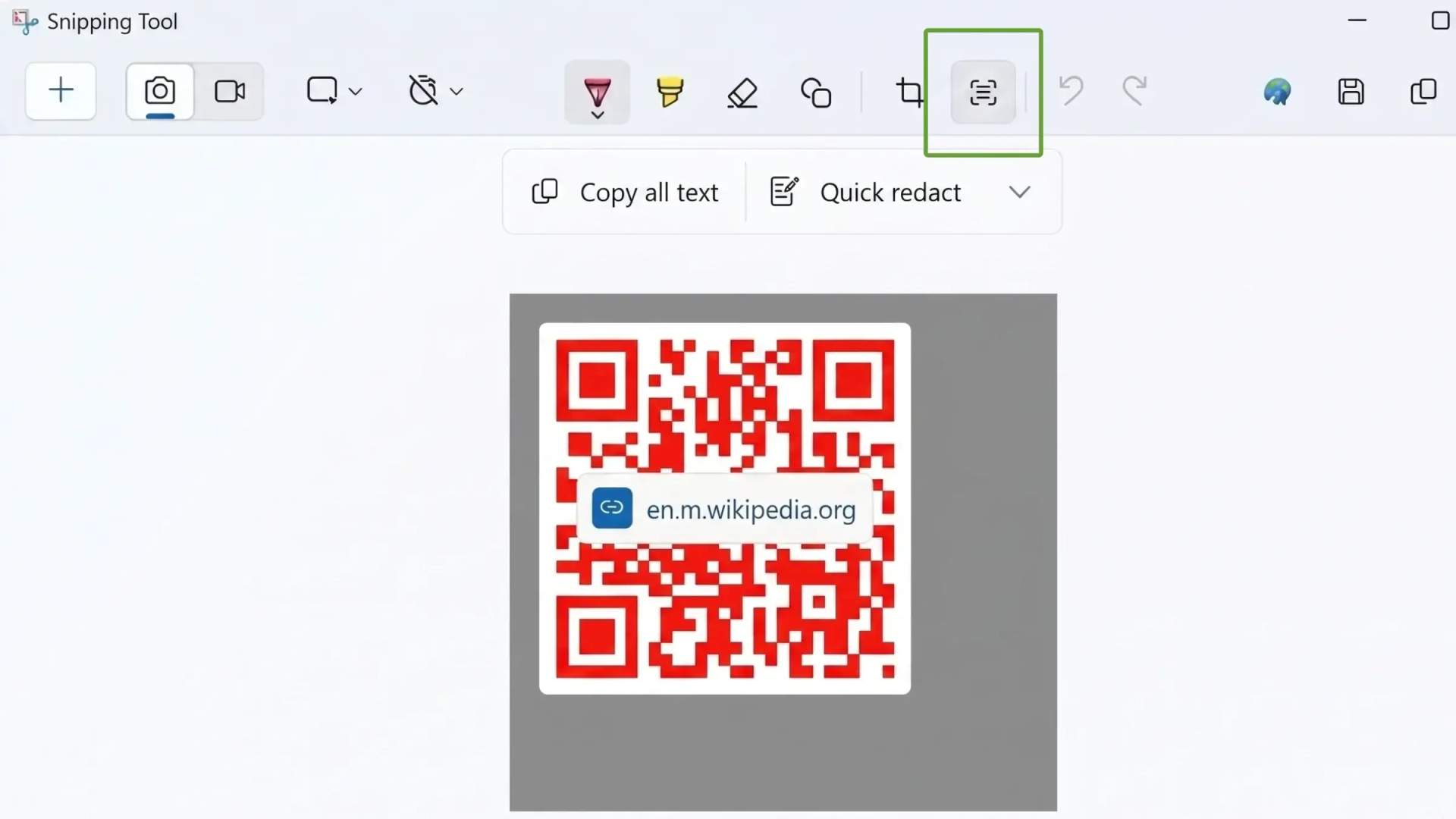
- Press Win + Shift + S to open Snipping Tool
- Take a screenshot of the QR Code
- Open the screenshot in the Snipping Tool window
- Click Text Actions
- Click the decoded link that appears
Limitation: This method only works on Windows 11 and is not available on Windows 10.
Method 3: Use Google Lens in Chrome for QR Codes on websites
If the QR Code is open in Chrome, Google Lens decodes it in a couple of clicks. This works whether the QR Code sits on a webpage or you have it saved as an image file, on both Windows and Mac, with no separate scanner needed.
Here’s how to scan a QR Code using Google Lens in Chrome:
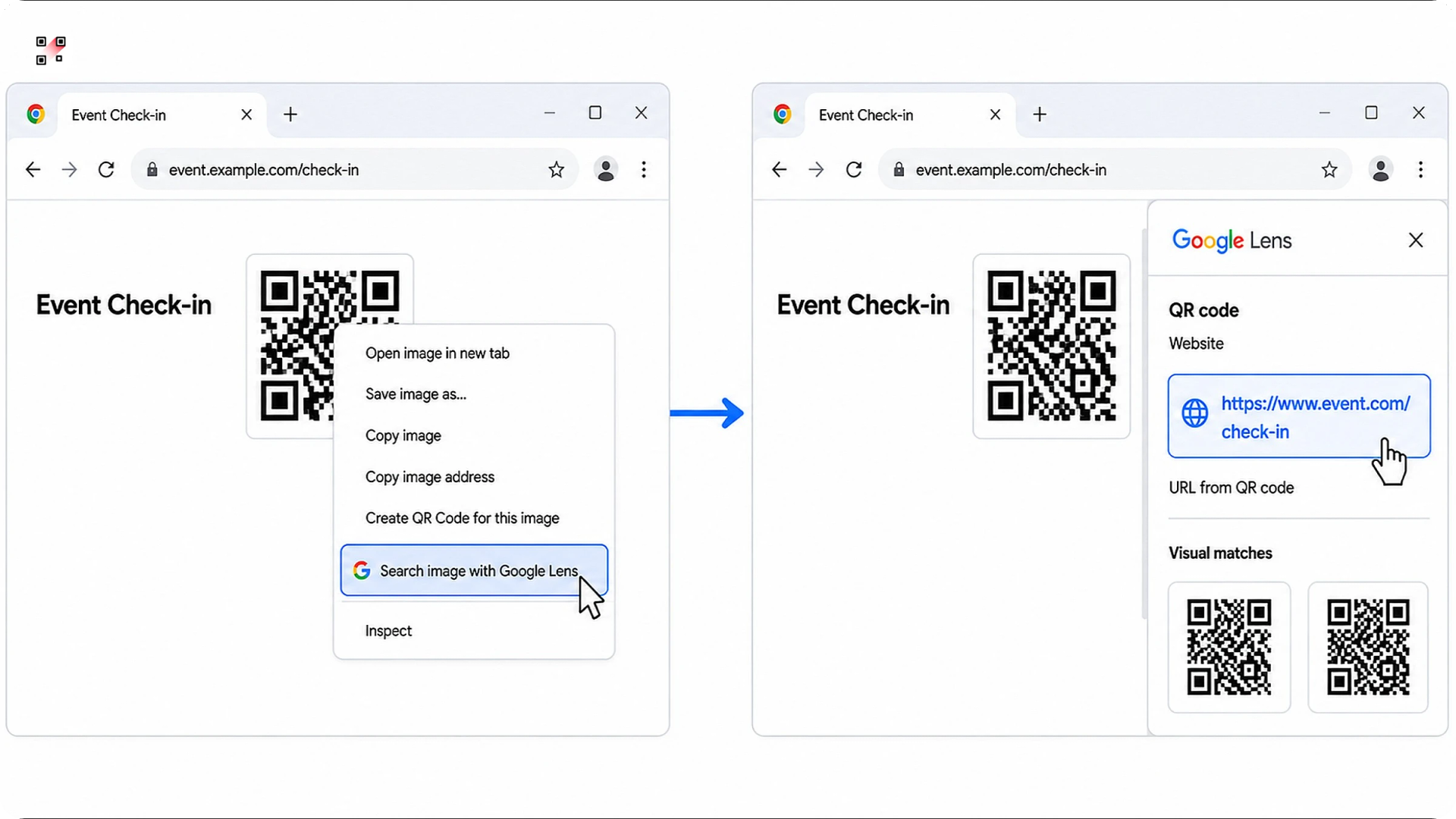
- Right-click the QR Code image
- Click Search image with Google Lens
- Wait for the Google Lens sidebar to open
- Click the decoded link or text that appears
Limitation: This method requires Google Chrome and an internet connection. It does not work in Edge, Firefox, or Safari, since Google Lens is built into Chrome.
Note: Some QR Codes appear as background elements instead of clickable images, so right-click may not work. In that case, take a screenshot of the QR Code and drag the saved image into Google Lens. The decoded link or text will appear automatically in the sidebar.
Method 4: Upload to an online QR Code scanner (no camera needed)
If the QR Code is saved as an image, screenshot, or email attachment, you can scan it using an online QR Code scanner.
This method works on any Windows version and does not require a webcam or software installation.
Here’s how to do it:
- Take a screenshot of the QR Code or save the image file to your computer
- Open a trusted online QR Code scanner
- Upload or drag and drop the image into the scanner
- The decoded URL appears instantly
Limitations: This method relies on a third-party website to decode your QR Code, which means your data passes through an external tool you don't control.
Note: Use a trusted QR Code scanner when uploading images online. For two-factor authentication or login QR Codes, it’s safer to avoid third-party tools altogether. Check out the safety section below for more details.
How to scan a QR Code on Mac
Mac users often expect the Camera app to scan QR Codes the same way an iPhone does. But macOS does not include a built-in QR Code scanner in the Camera app.
The good news is you have several practical alternatives:
Method 1: Use Google Lens in Chrome
If the QR Code is open in Chrome, Google Lens decodes it in a couple of clicks. This works the same on a Mac as it does on Windows, whether the QR Code sits on a webpage or you have it saved as an image file, with no separate scanner needed.
For a QR Code already on a webpage:
- Right-click the QR Code image.
- Click Search image with Google Lens.
- Wait for the Google Lens sidebar to open.
- Click the decoded link or text that appears.
For a QR Code saved as a screenshot or image file:
- Drag the image file into a new Chrome tab to open it.
- Right-click the image and click Search image with Google Lens.
- Click the decoded link or text in the sidebar.
Limitation: This method relies on Google Chrome and an internet connection. It does not work in Safari or Firefox, since Google Lens is built into Chrome.
Method 2: Use Safari to open a QR Code on a webpage
If the QR Code is open in Safari, macOS can read it directly from the image, with no scanner or extension needed. This works on macOS Ventura and later.
- Control-click (right-click) the QR Code image in Safari.
- Click Open Link in the menu that appears.
- Safari opens the decoded destination.
Limitation: The Open Link option only appears if macOS recognizes the QR Code. It does not work when the QR Code is a background image or part of a larger graphic. In those cases, take a screenshot and use Google Lens or an online scanner instead.
Method 3: Use iPhone Continuity Camera for physical QR Codes
Unlike the iPhone, the macOS Camera app cannot scan QR Codes directly. But if you use both a Mac and an iPhone, Apple’s Continuity Camera feature gives a simple built-in alternative.
With Continuity Camera, your iPhone camera works directly with your Mac. You can then scan QR Codes without having to install another app.
To use this method, you need:
- A Mac running macOS Ventura or later
- An iPhone signed in with the same Apple ID
- Bluetooth and Wi-Fi turned on
Here’s how to scan a QR Code using Continuity Camera:
- Open the Camera app on your iPhone
- Point the camera at the QR Code
- Wait for your Mac to detect and open the QR Code content automatically
Method 4: Upload to an online QR Code scanner (No installations)
This approach works identically on Mac as it does on Windows. If you have a QR Code saved as an image, a screenshot, or an email attachment, just drag and drop it into a trusted online scanner. The decoded link will appear instantly.
Method 5: Third-party Mac app (for frequent use)
If you scan QR Codes regularly, a dedicated app is worth having.
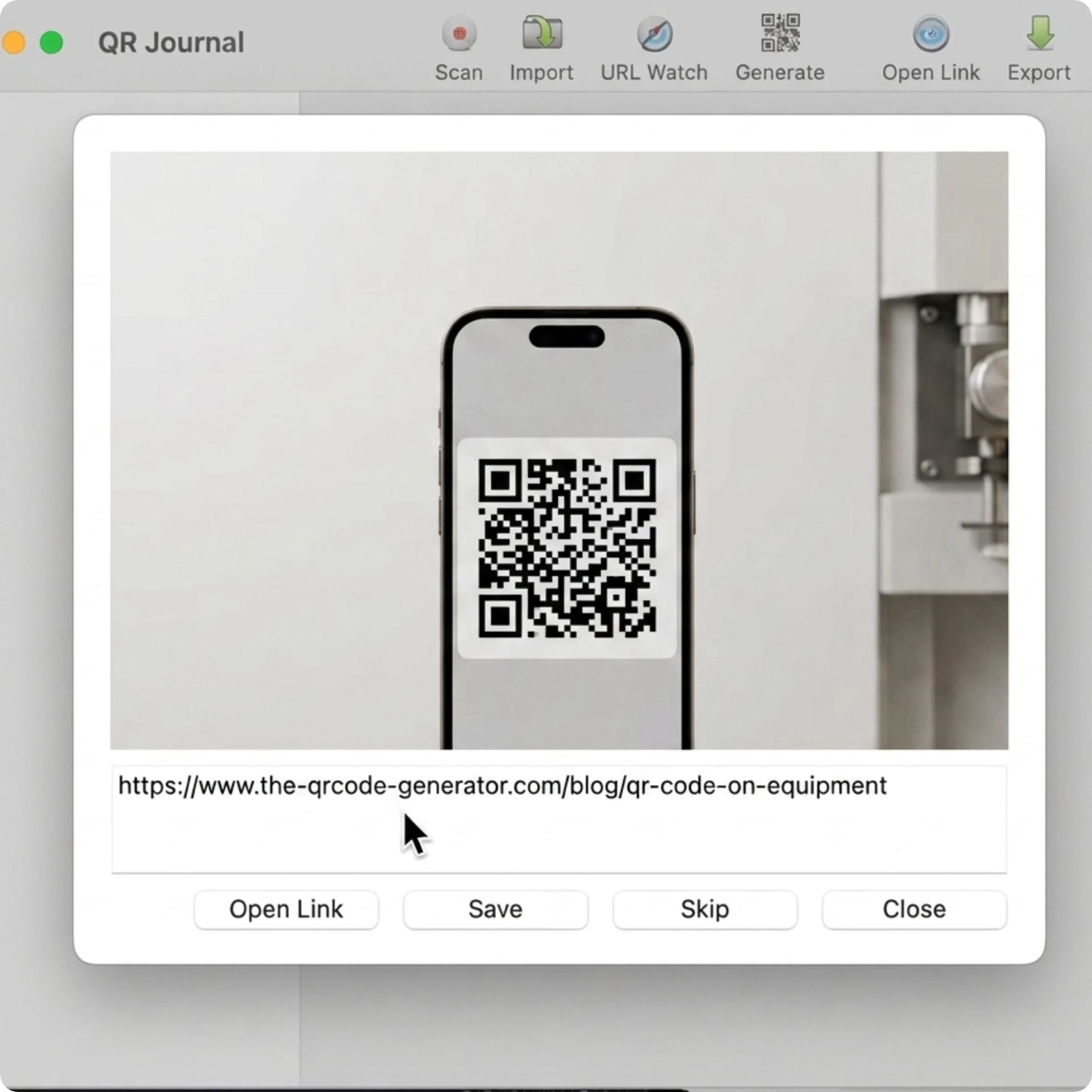
You can install apps like QR Journal and QR Capture. They let you scan QR Codes using your Mac’s webcam or upload saved images directly from your computer.
What to do if your QR Code won't scan
Most scanning problems trace back to three causes: camera trouble with physical QR Codes, browser limits with on-screen QR Codes, or a low-quality image file. Here are the fastest fixes to use when QR Codes are not working:
| Platform | Issue | Fix |
|---|---|---|
| Windows | Barcode button missing in the Camera app | Open Camera settings, enable "Try out new experimental features," then restart the app and try again. |
| Windows | Webcam not detecting the QR Code | Check camera permissions under Settings > Privacy & security > Camera. If permissions are fine, hold the QR Code 6 to 12 inches from the camera and add more light. |
| Mac | iPhone Continuity Camera not connecting | Confirm both devices use the same Apple ID, share the same Wi-Fi network, and have Bluetooth on, then reopen the Camera app on the iPhone. |
| Mac | "Open Link" missing in Safari | macOS shows it only when it recognizes the QR Code. Take a screenshot and run it through Google Lens or an online scanner instead. |
| Both | Right-click does not show Google Lens | Update Chrome, then open the QR Code image in a new tab before right-clicking again. |
| Both | QR Code cannot be right-clicked on a website | Take a screenshot (Win + Shift + S on Windows, Cmd + Shift + 4 on Mac) and scan the saved image instead. |
| Both | QR Code image looks blurry or low quality | Zoom into the QR Code before screenshotting. Google Lens handles low-quality QR Codes better than most online scanners. |
| Both | Printed QR Code is damaged | QR Codes carry built-in error correction that fixes minor damage. A torn, smudged, or badly faded code won't read, so get a clean reprint or the original digital version. |
Is it safe to scan QR Codes on your computer?
Yes, generally QR Codes are safe to scan. However, the risk is not in the scanning itself. It is where the QR Code takes you. Most QR Codes are harmless, but malicious QR Codes can redirect you to phishing pages or fake login screens if you are not careful.
How to scan QR Codes safely
A few seconds of verification can help you avoid malicious websites and unsafe redirects:
- Preview the destination URL first: Preview the decoded URL before clicking it. Most methods covered above show the destination link first. You can verify where the QR Code leads before opening it.
- Check unfamiliar QR Codes carefully: Be careful with QR Codes from unexpected emails or unknown senders. Always check the domain name first.
- Avoid uploading 2FA or login QR Codes: For two-factor authentication or login QR Codes, avoid uploading the image to a third-party scanner. These codes contain your account's setup key. Instead, use built-in tools like the Windows Camera app or Snipping Tool to keep the QR Code data on your device.
- Watch for phishing signs: Look for HTTPS and make sure the URL matches the sender or brand. Typosquatted domains (misspelled versions of real brands) like "paypa1.com" or vague URL shorteners from unknown senders are warning signs.
Choose the Right QR Code Scanning Method for Your Computer
You do not need a phone to scan a QR Code on your computer. Windows and Mac both give you reliable options, and the right one depends on what you are working with.
For screenshots, PDFs, and on-screen QR Codes, tools like Snipping Tool and Google Lens make the process much faster.
For scanning physical QR Codes or reading QR Codes from another device, you can use built-in camera tools or online scanners like The QR Code Generator’s scanner directly in your browser.
Now, if you want to create and share QR Codes, you can use The QR Code Generator (TQRCG) and create two free dynamic QR Codes with TQRCG in minutes. No credit card required.
Frequently Asked Questions
1. Can you scan a QR Code on a computer without a phone?
Yes. Both Windows and Mac let you scan QR Codes directly from your computer without using a phone.
- On Windows, you can use the Camera app for physical QR Codes or Snipping Tool for on-screen QR Codes.
- On both Windows and Mac, Google Lens in Chrome and online QR Code scanners also work well for screenshots, PDFs, and saved images.
2. How do I scan a QR Code from a screenshot on Windows?
- On Windows 11, open the screenshot in Snipping Tool and click Text Actions to detect the QR Code.
- You can also right-click the image in Chrome and open it with Google Lens.
- Another option is uploading the screenshot to an online QR Code scanner.
3. Why is the Barcode button missing in my Windows Camera app?
Some Windows builds may not show the Barcode option by default. Open Camera Settings, enable Try out new experimental features, and restart the app. If the option still does not appear, use Google Lens or an online QR Code scanner instead.
4. Does Mac have a built-in QR Code scanner?
No. Unlike the iPhone, the macOS Camera app does not include a built-in QR Code scanner. However, Macs running macOS Ventura or later can use Continuity Camera with an iPhone. You can also scan QR Codes using Google Lens in Chrome or apps like QR Journal.
5. How do I scan a QR Code from an image or PDF on my computer?
Save the image or take a screenshot of the PDF page containing the QR Code. Then upload the image to an online QR Code scanner or open it with Google Lens in Chrome. On Windows 11, you can also use Snipping Tool and click Text Actions.
6. Is it safe to use an online QR Code scanner?
For standard QR Codes, yes. Most reputable online scanners are safe to use. The one exception is 2FA or authenticator QR Codes. These contain sensitive setup keys and should not be uploaded to third-party websites. For those, use the Windows Camera app or Snipping Tool instead. For any QR Code, always check the decoded URL before clicking it.