The QR Code Generator Logo

Free Google Sheet QR Code Generator

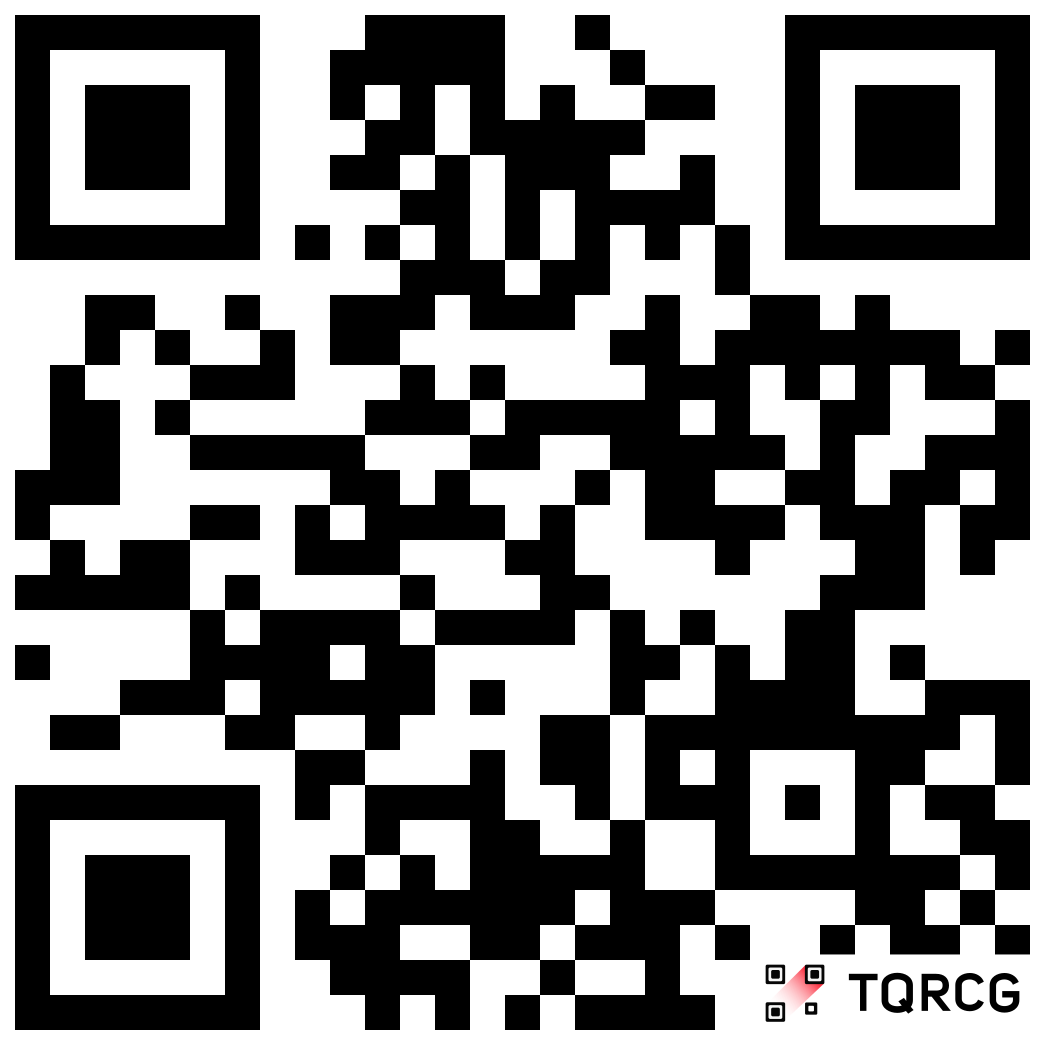
Give anyone instant access to your live spreadsheet. A Google Sheets QR Code opens your inventory, price list, or tracker in one scan, with no links to send or files to email.

Redirect to an existing web URL

Try something like https://example.com/
QR Code preview
Google
4.8

Trusted by 4M+ users

Sign up free
No credit card required

What is a Google Sheets QR Code?

A Google Sheets QR Code lets anyone open a spreadsheet, such as an inventory list, price sheet, or live tracker, by scanning it with a phone. It eliminates long links and emailed files so teams and customers access data instantly.

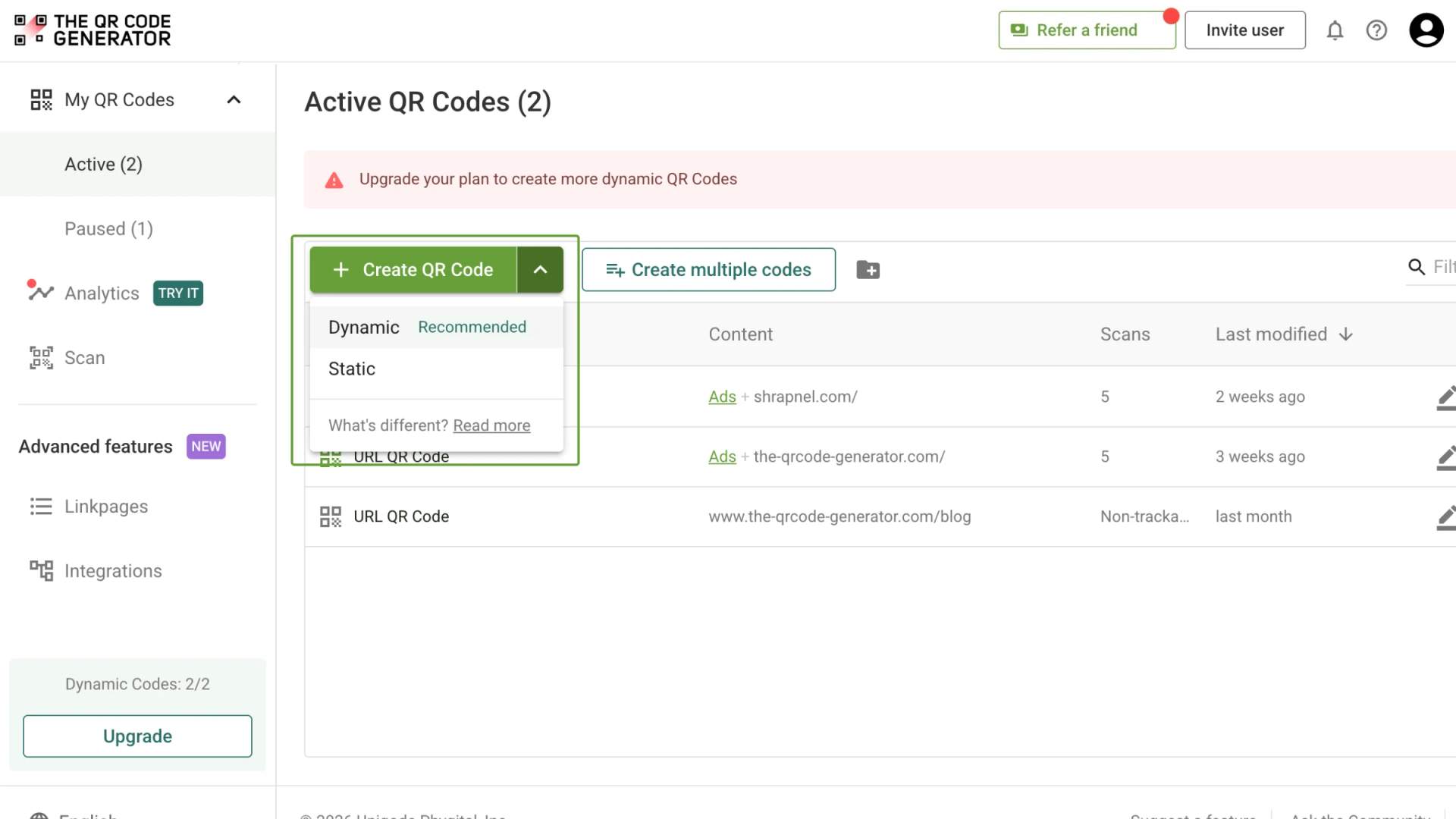
Create it as a dynamic QR Code, the best option for this use. You can edit the linked sheet anytime, the same QR Code always opens the latest version, and you get scan tracking built in.
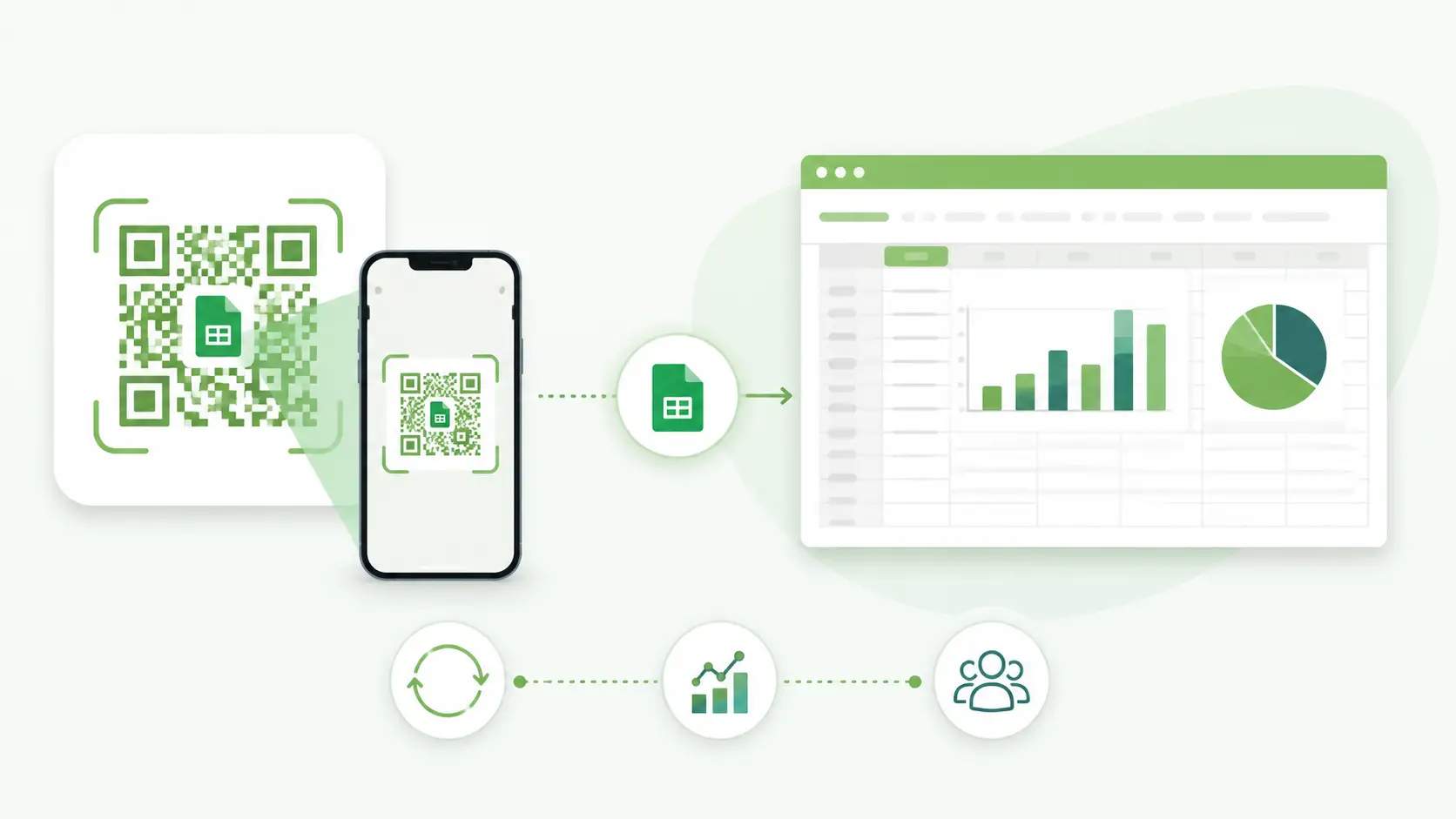
Create a free Google Sheets QR Code
What is a Google Sheets QR Code

How to create a Google Sheets QR Code in 4 easy steps

Log in and choose dynamic

Why use a Google Sheets QR Code?

Always shows the latest data

Always shows the latest data

Edit your Google Sheet anytime, and the same QR Code opens the current version. Scanners always see live numbers, so you never reprint a QR Code when the data changes.

Share without emailing files or links

Share without emailing files or links

Skip the long share URLs and email attachments. One scan opens your spreadsheet, so your team or customers reach the right sheet without hunting through inboxes.

Track scans in real time

Track scans in real time

See how many people scan your Google Sheets QR Code, plus their location, device, and time, from the TQRCG dashboard. That data shows which placements actually get used.

Replace printed lists and cut waste

Replace printed lists and cut waste

Swap static printouts for one scannable QR Code that never goes out of date. You save on reprinting and keep everyone on a single source of truth.

Keep access to the right people

Keep access to the right people

Share the QR Code only with the team members who should see the sheet. For an extra layer, add password protection to your dynamic QR Code using TQRCG’s Uniqode-powered plans. So even if someone else spots the QR Code, only people with the password open.

What are the best practices for creating Google Sheets QR Codes?
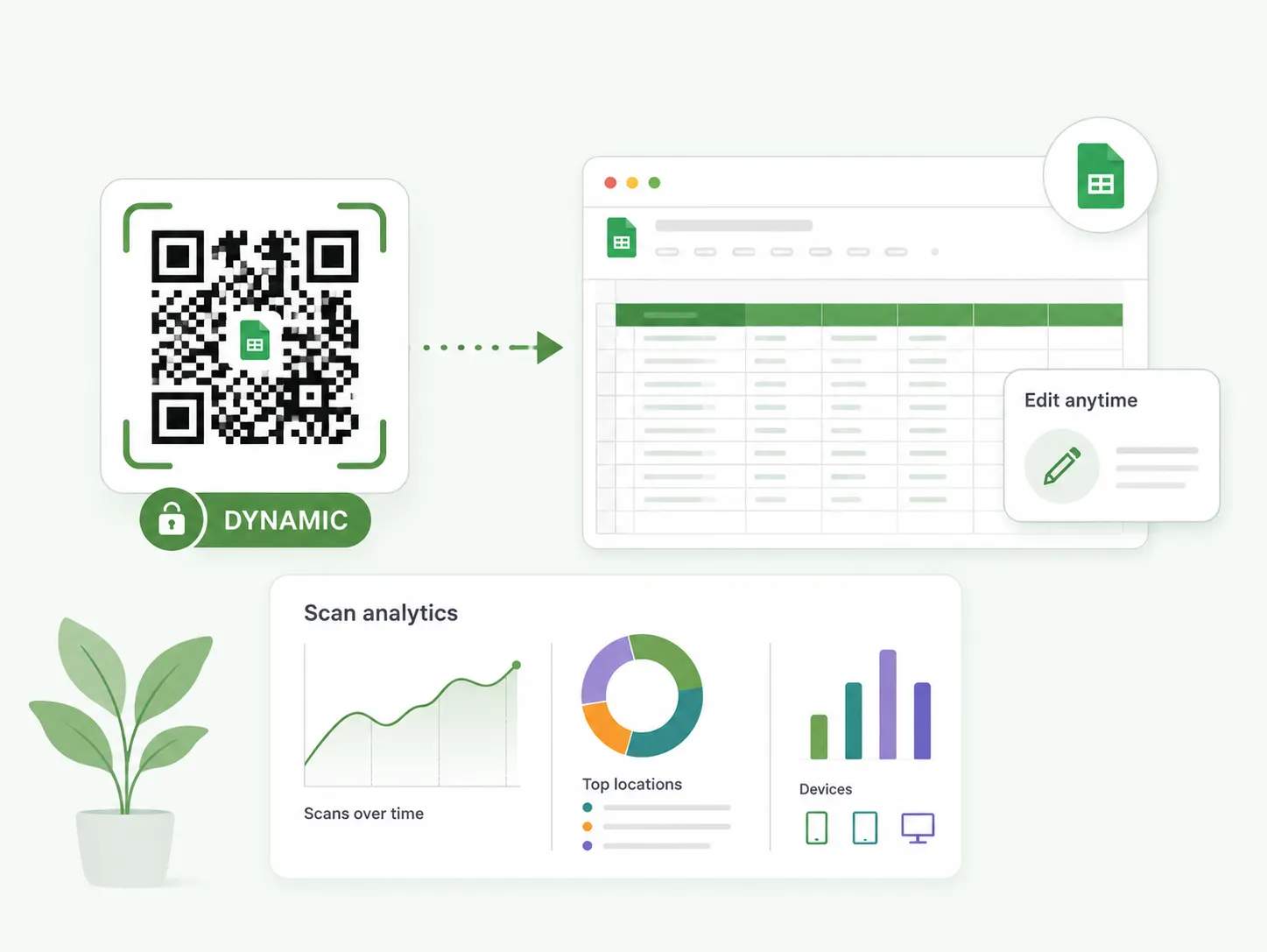
Create your Google Sheets QR Code as a dynamic QR Code, the best option for this use. You can swap the linked sheet anytime and get real-time scan analytics, all without reprinting the QR Code.

Use a dynamic QR Code

Set your Google Sheet to "Anyone with the link can view" first. This one step prevents the access-request wall that stops a scan from opening your spreadsheet.

Use high contrast between the QR Code and its background so cameras read it fast. Add your logo or a frame so people trust where the scan leads.

Tell people what they get before they scan. Short prompts like "Scan for the live price list" or "Scan for current stock" lift scan rates.

Scan your QR Code under bright light, on curved surfaces, and from a few distances on both Android and iOS. Confirm it opens the right Google Sheet every time before you print.

Freeze the header row and keep columns narrow so the spreadsheet is readable on a phone. A scan that opens a cramped sheet gets abandoned fast.

How do teams use Google Sheets QR Codes?

Warehouse and logistics teams

Warehouse and logistics teams

Link the QR Code to a live stock-count Sheet so pickers check quantities and log movements as they work. Everyone reads the same running total, so counts stay accurate across shifts.
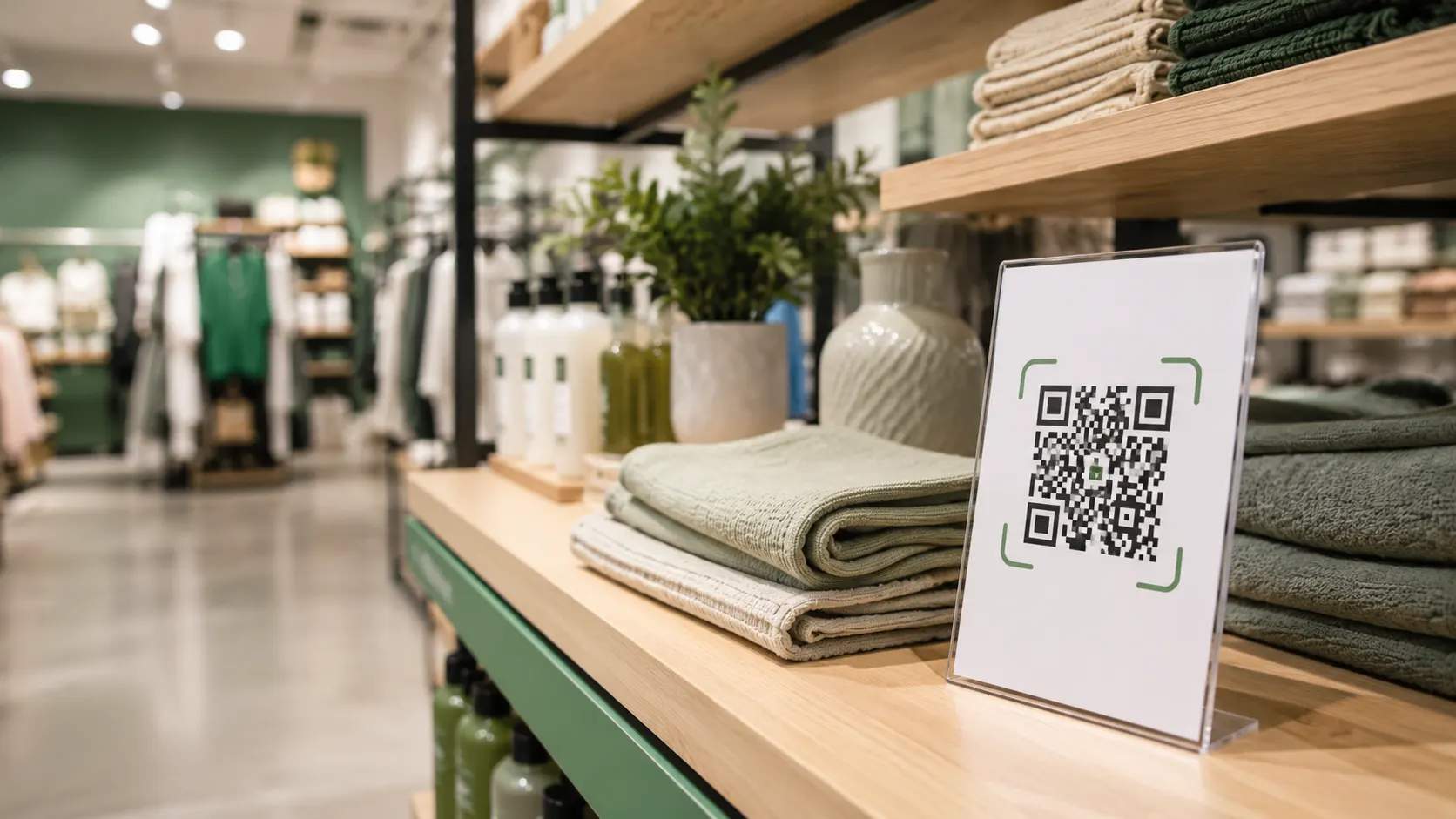
Retail and merchandising teams

Retail and merchandising teams

Point the QR Code at the current price or planogram Google Sheet so associates confirm details on the floor. Staff answer pricing and placement questions without calling a manager.
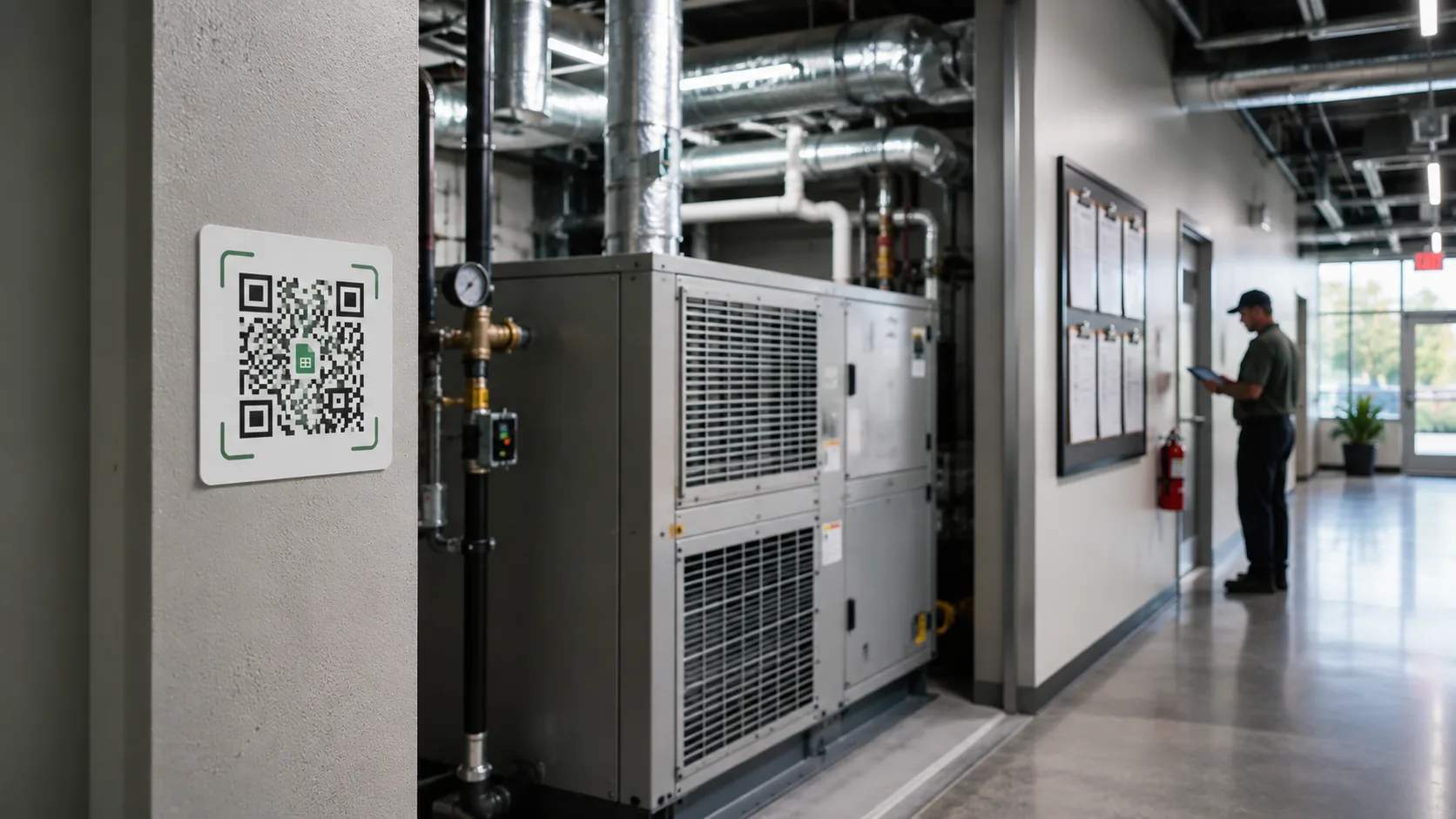
Operations and facilities teams

Operations and facilities teams

Open an equipment maintenance-log Sheet from a scan so technicians read service history on the spot. They record the next check in the same sheet, keeping one clean record per asset.

Education teams

Education teams

Share a reading list or assignment Sheet through a QR Code on the board or handout. Students always open the latest version, so you never resend a link after an update.
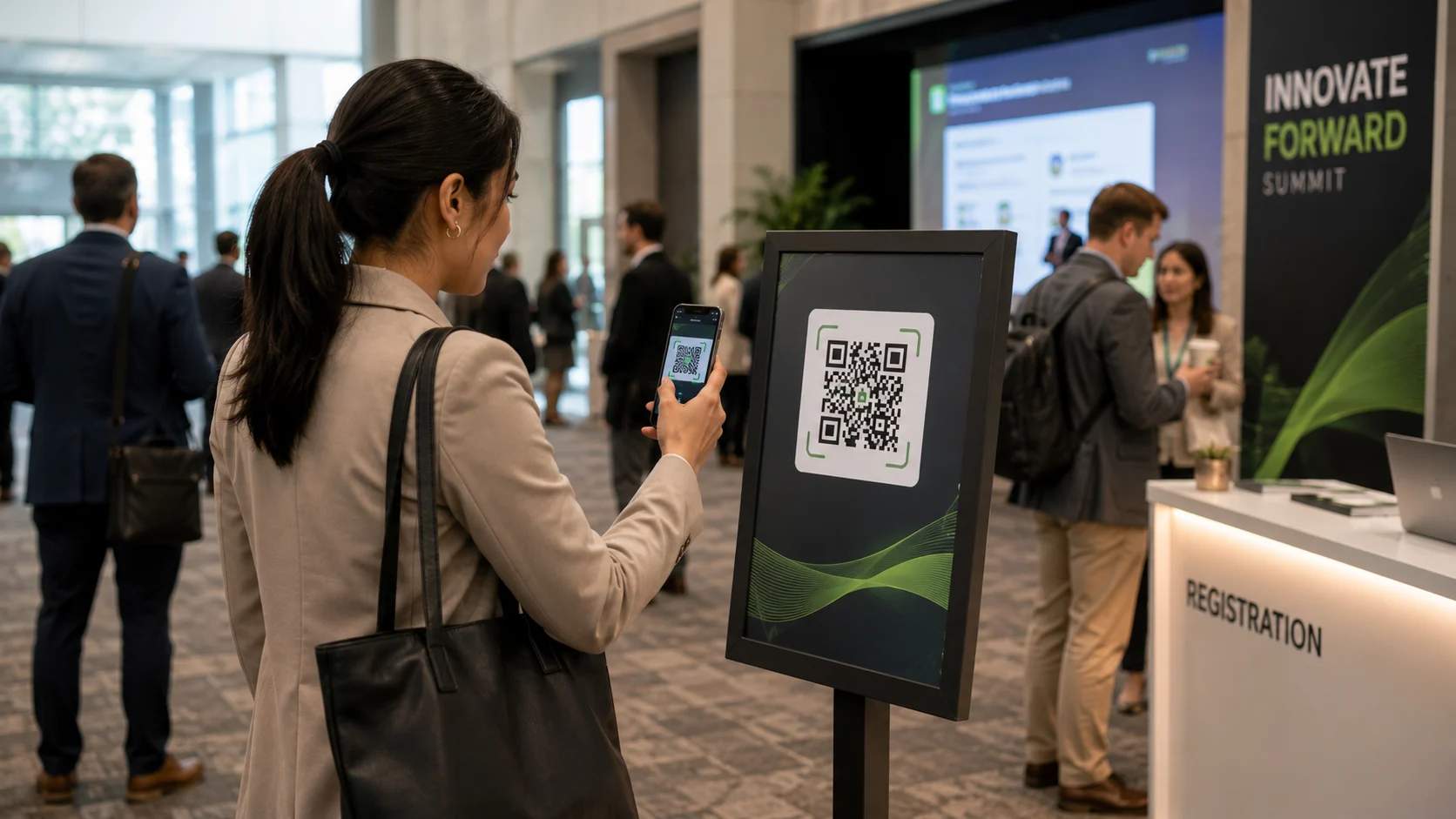
Events and conference teams

Events and conference teams

Pull up a live attendee or session Sheet so staff track sign-ups and changes in real time. The team works from one source during setup, check-in, and teardown.
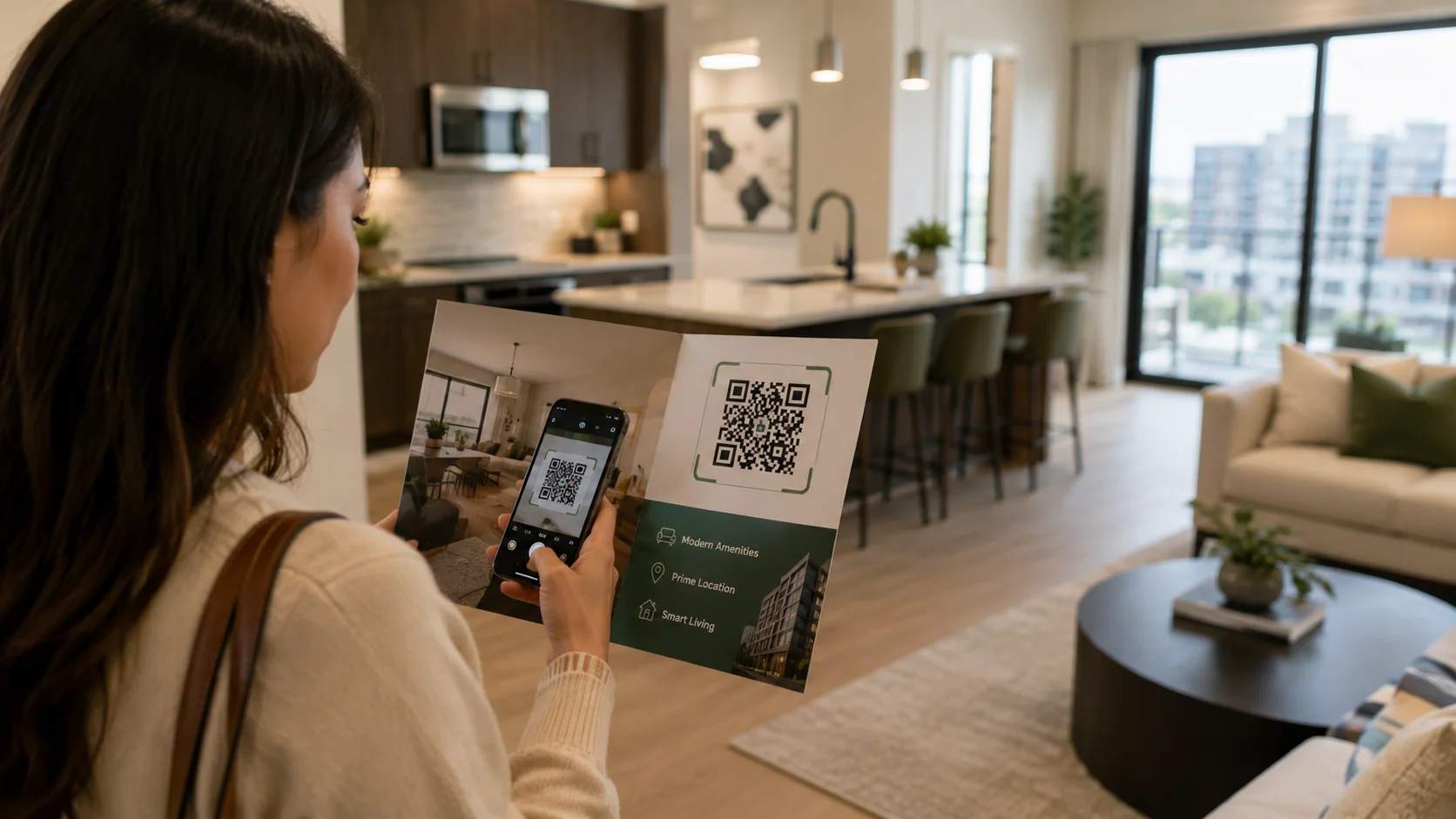
Real estate and property teams

Real estate and property teams

Link to an availability or unit-status Sheet so agents and prospects see current options instantly. A scan replaces the printed list that goes stale the moment a unit changes.

Frequently asked questions

A static QR Code locks the destination permanently, while a dynamic QR Code lets you change the linked sheet and track scans after printing. Dynamic is the better choice here because your data and even the linked file can change over time. TQRCG's free plan includes 2 dynamic QR Codes that never expire, and you can upgrade for more.

Yes, a Google Sheets QR Code opens your live sheet, so scanners always see the current version. Edit the spreadsheet whenever you want, and the same QR Code reflects those changes instantly. You never regenerate or reprint the QR Code when the data updates.

Yes, you control access from Google Sheets, not from the QR Code. Set the sheet to "Anyone with the link can view" for open access, or restrict it to specific people who sign in. The QR Code simply opens whatever sharing rule you set.

No, viewers do not need a Google account when the sheet is set to "Anyone with the link can view." They scan and the spreadsheet opens in their phone browser. Choose a restricted sharing setting only if you want viewers to sign in first.

Download your Google Sheets QR Code from the TQRCG dashboard in PNG for digital use or SVG and EPS for print. With a dynamic QR Code, the same dashboard shows total scans, unique scans, location, device, and time so you can see how often the sheet gets used.

Yes, link it to any individual tab, not just the first sheet. Open the tab you want, copy the URL from your browser (it includes that tab's ID), and paste that link when you create the QR Code. Scanners then land on the exact tab you chose, such as "Q3 Inventory" instead of the whole workbook.

No, editing the data or renaming the file does not break the QR Code, because the underlying link stays the same. The QR Code only fails if you delete the Sheet or change its sharing back to restricted. With a dynamic QR Code, you can also repoint it to a different Sheet anytime without reprinting.

A Google Sheets QR Code is exactly as private as the sheet's sharing setting, so treat "Anyone with the link can view" as public to anyone who scans. Keep sensitive data on a sheet restricted to named accounts, or strip private columns into a separate view-only sheet. For an extra layer, add password protection to your dynamic QR Code so only people with the password can open it.

Put your Google Sheet one scan away

Create a free Google Sheets QR Code with TQRCG and give your team instant access to live data. The free plan gives you 2 free dynamic QR Codes. No credit card required.