
Free Google Chrome QR Code Generator
Redirect to an existing web URL
To enable tracking,


Trusted by 4M+ users
Imagine you’re in a coffee shop, and you find an interesting article on your laptop. Instead of emailing yourself the link or struggling to type it on your phone, you simply scan a QR Code on your screen, and voilà—the webpage opens instantly on your mobile.
That’s the magic of Google Chrome’s built-in QR Code generator. But is it enough? Or do you need more than just a basic black-and-white code? Let’s dive into what Chrome’s QR Code feature offers—and why a more advanced solution might be a better fit.
What is a Google Chrome QR Code?
A Google Chrome QR Code is a scannable QR Code generated directly within the Chrome browser to share a web page’s URL.
When scanned, QR Codes instantly direct users to the encoded link, eliminating the need to type or copy-paste long URLs. Chrome’s built-in QR Code feature (found in the address bar’s “Share” menu) is handy for quick, no-frills sharing.
How to access the default QR Code on Chrome
Step 1: Open Google Chrome and navigate to the webpage you want to share
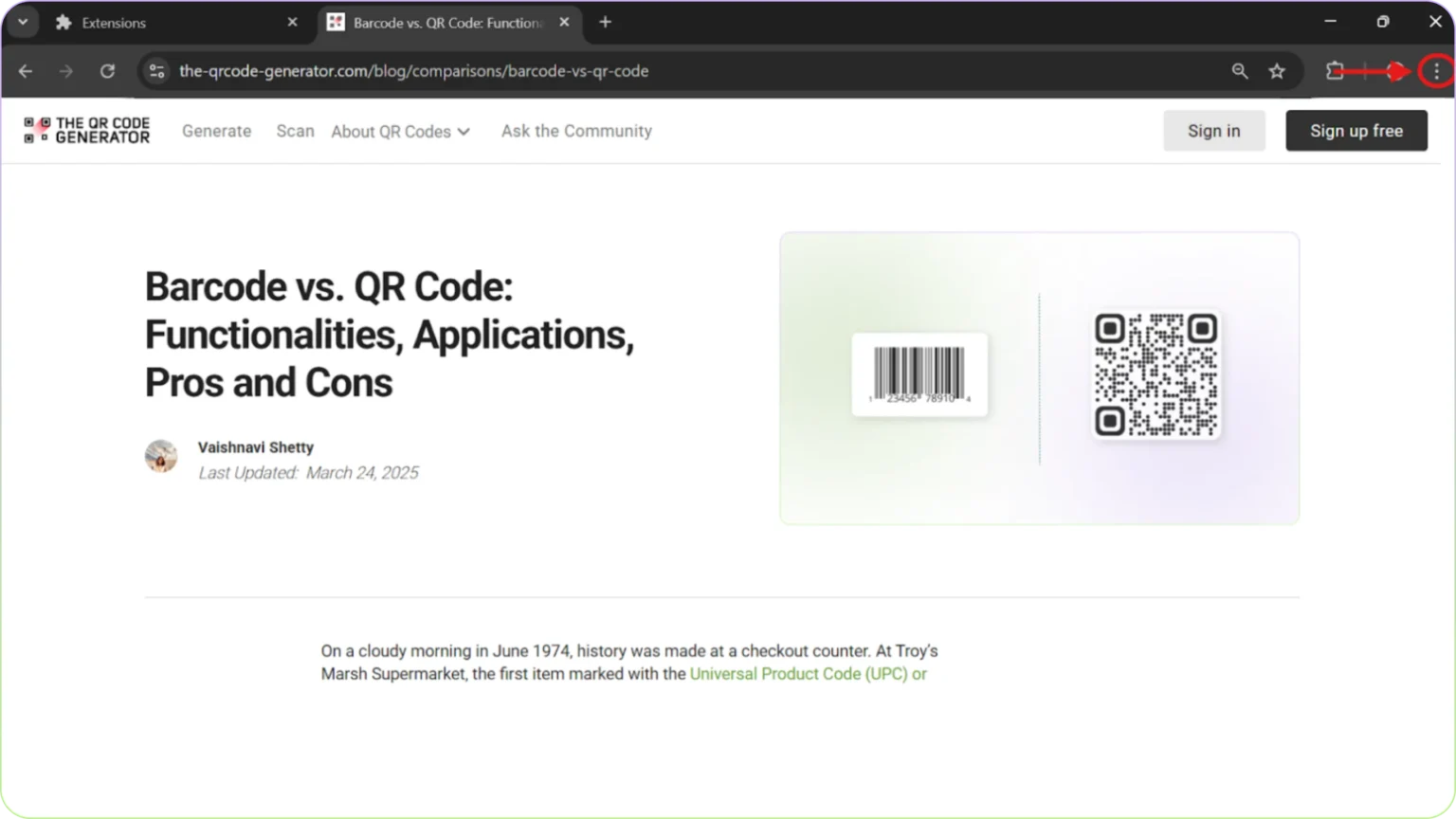
Step 2: Click the three-dot menu (⋮) in the top-right corner
Step 3: Hover over “Cast, save and share” in the dropdown menu
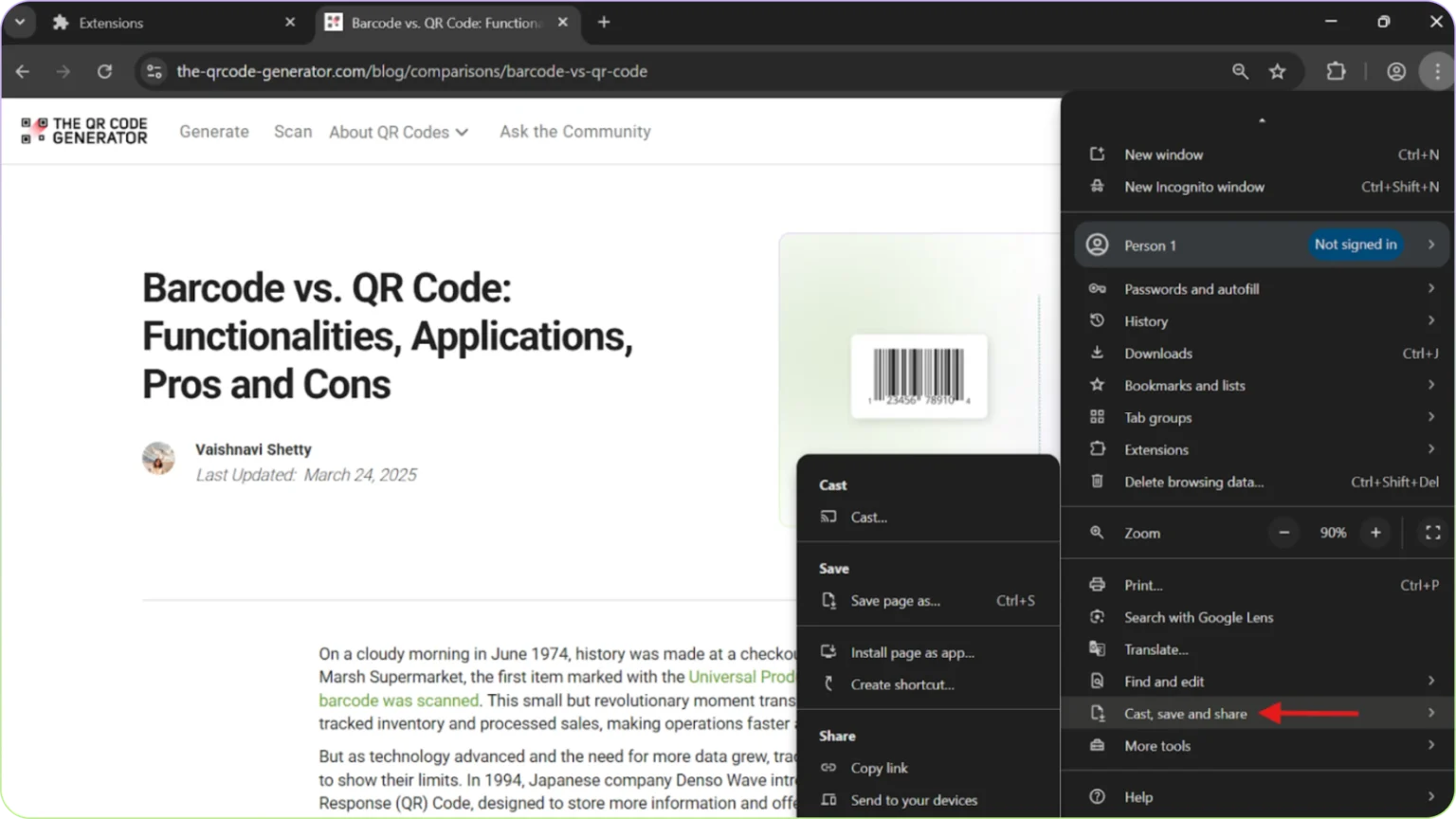
Step 4: Select “Create QR code.” Wait for the pop-up that displays the QR code for your current page.
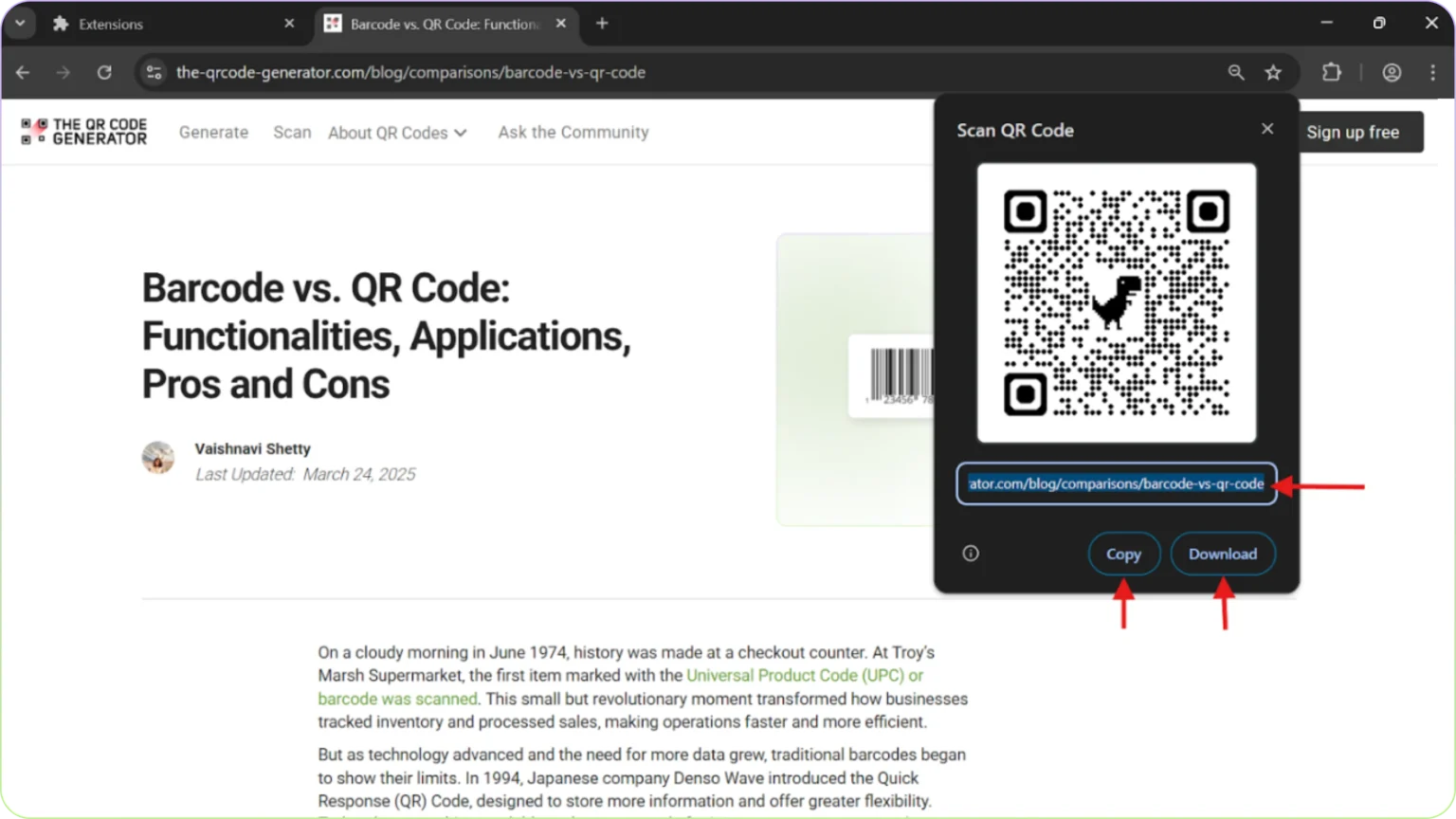
Step 5: Choose an action:
Copy the QR link to paste it elsewhere.
Download the QR code as a PNG image.
Scan the code with another device’s camera.
Should I use Google Chrome’s native QR Code generator?
While Chrome’s built-in QR feature is a quick no-frills option for generating a basic QR Code, it has limitations:
No customization: Codes are plain black-and-white.
No tracking: You can’t monitor scans or user data.
Static links: If the URL changes, the QR code becomes obsolete.
No branding: Missing logos, colors, or CTAs.
Basic formats: Only PNG downloads are supported (no SVG/EPS)
Note: There are several Google chrome extensions that can generate QR Codes; some popular ones on the Chrome web store include:
The QR Code Extension by TQRCG
QR Code (Generator and Reader)
However, these extensions share the previously mentioned limitations and may also pose security concerns.
For businesses, marketers, or creators, these drawbacks matter. The QR Code Generator (TQRCG) solves these issues with dynamic codes, analytics, and design flexibility—all while working seamlessly in Chrome.
Let’s discuss how to create a free QR Code with superior features directly from Chrome, step-by-step.
How do you create and customize a QR Code?
Step 1: Open Chrome and Navigate to Your Desired Webpage
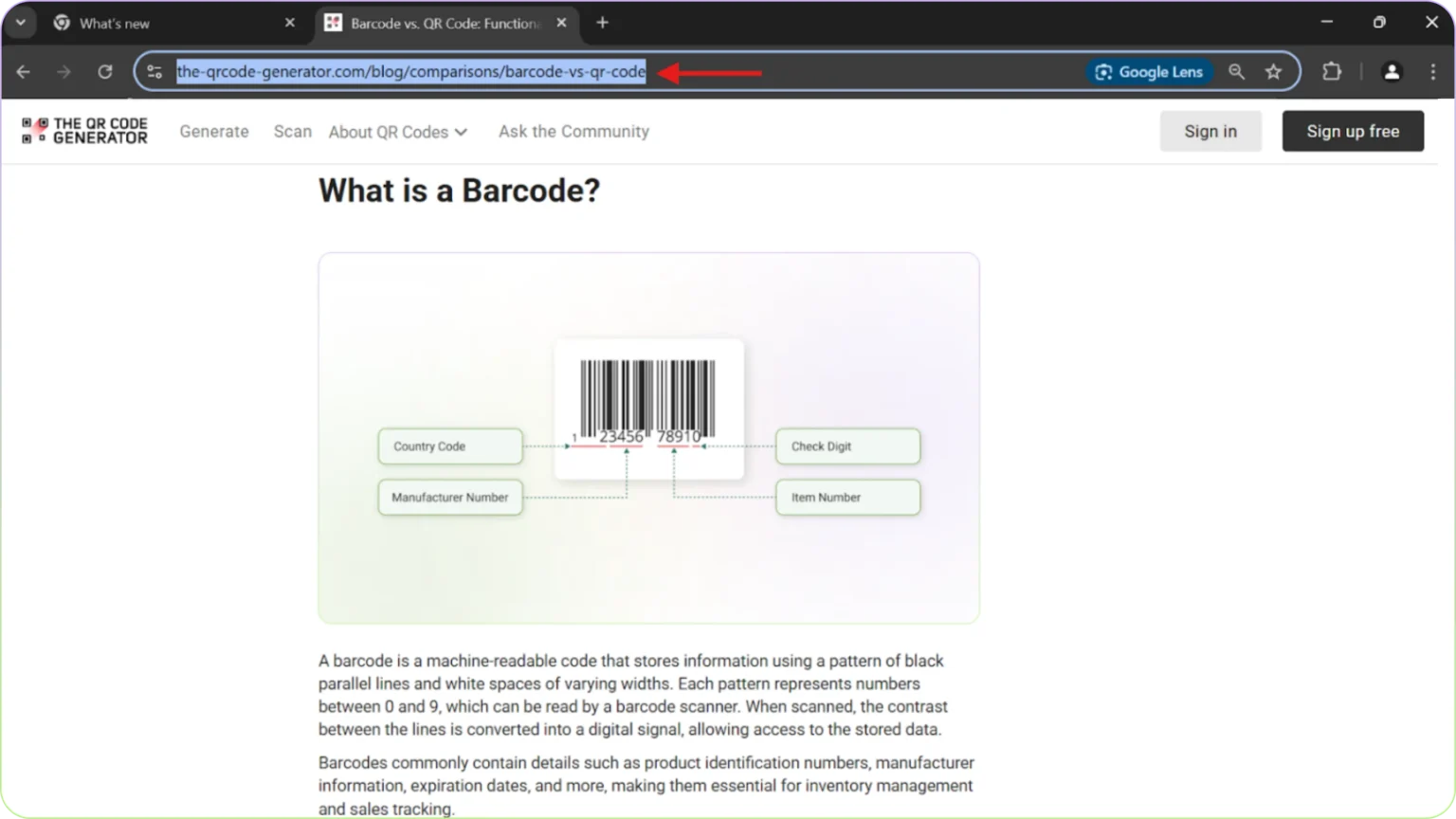
Go to the URL you want to share (e.g., your website, landing page, or event registration) and copy it. (Use Ctrl+C for Windows and Command(⌘)-C on Mac to copy)
Step 2: Open The QR Code Generator
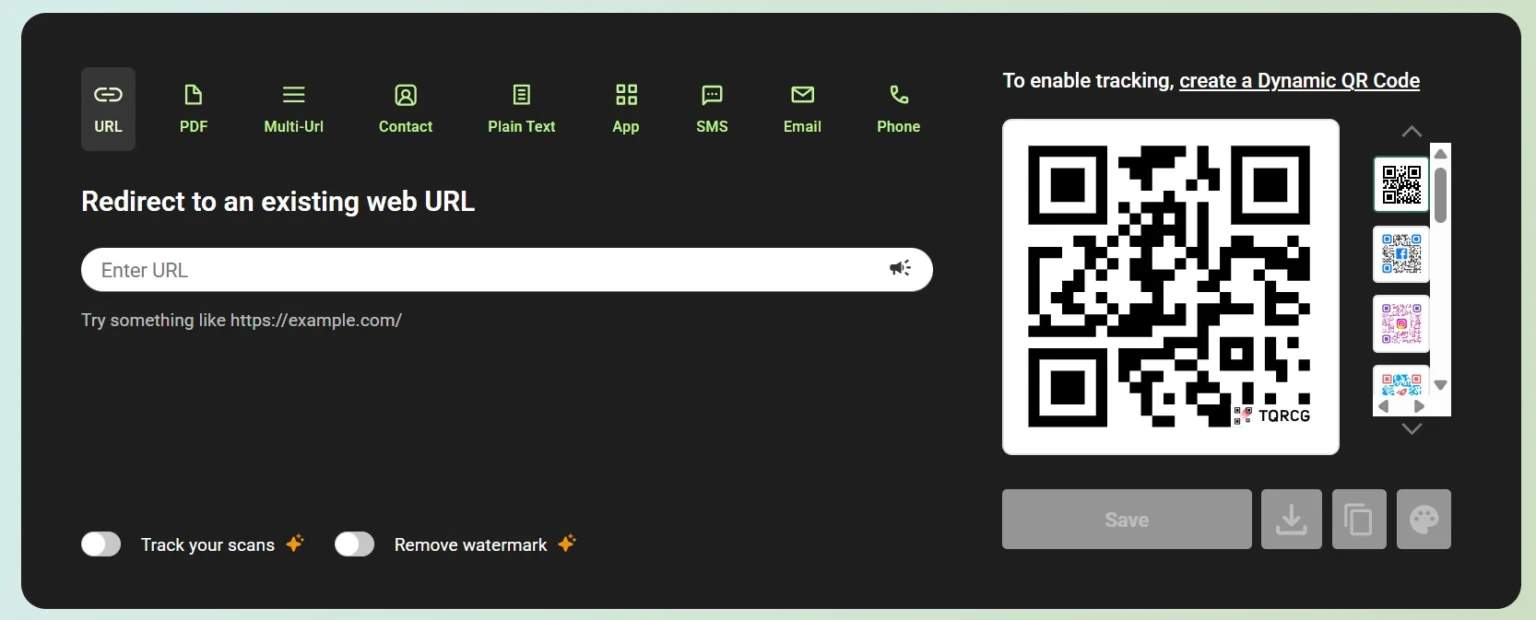
Go to The QR Code Generator (TQRCG) or scroll to the widget at the top.
Step 3: Paste the URL
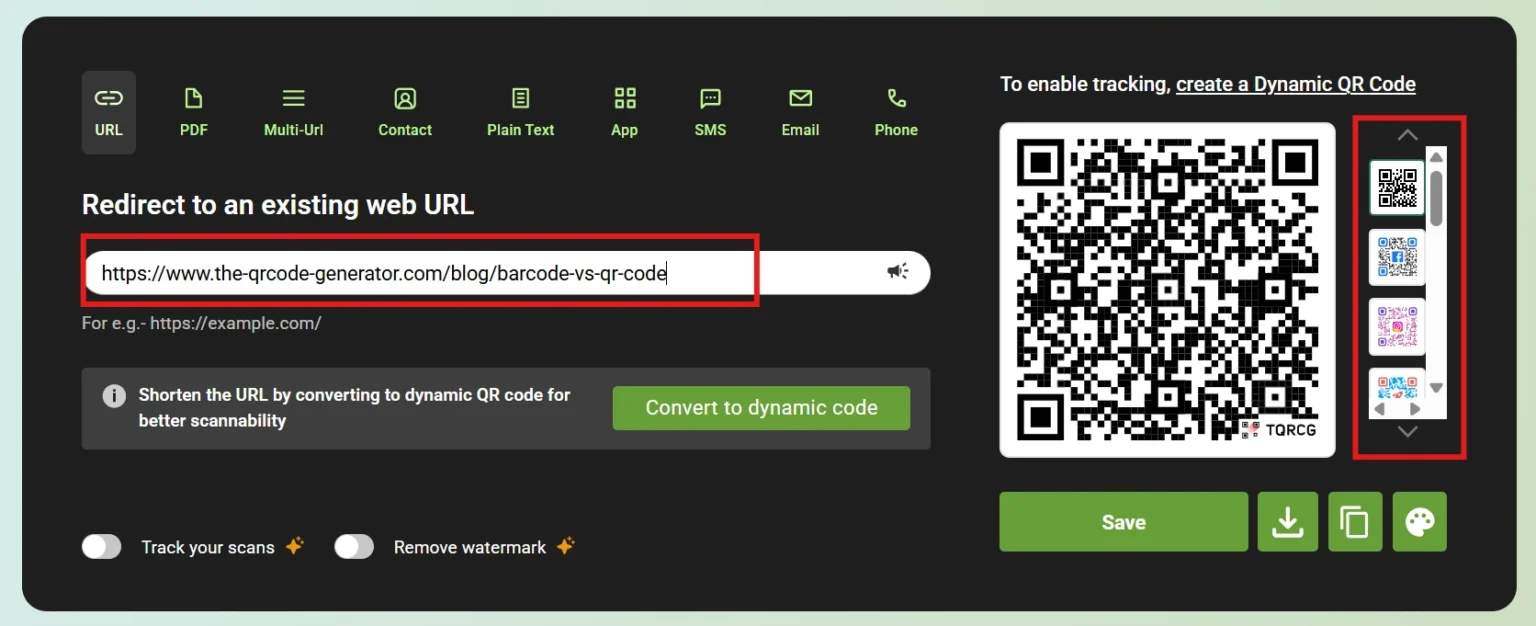
Paste the web page’s URL from Chrome into the input field. (Use Ctrl+V for Windows and Command(⌘)-V on Mac to copy)
Optional: Scroll through the list of options to customize the design of your QR Code.
Step 4: Click the “Download” button
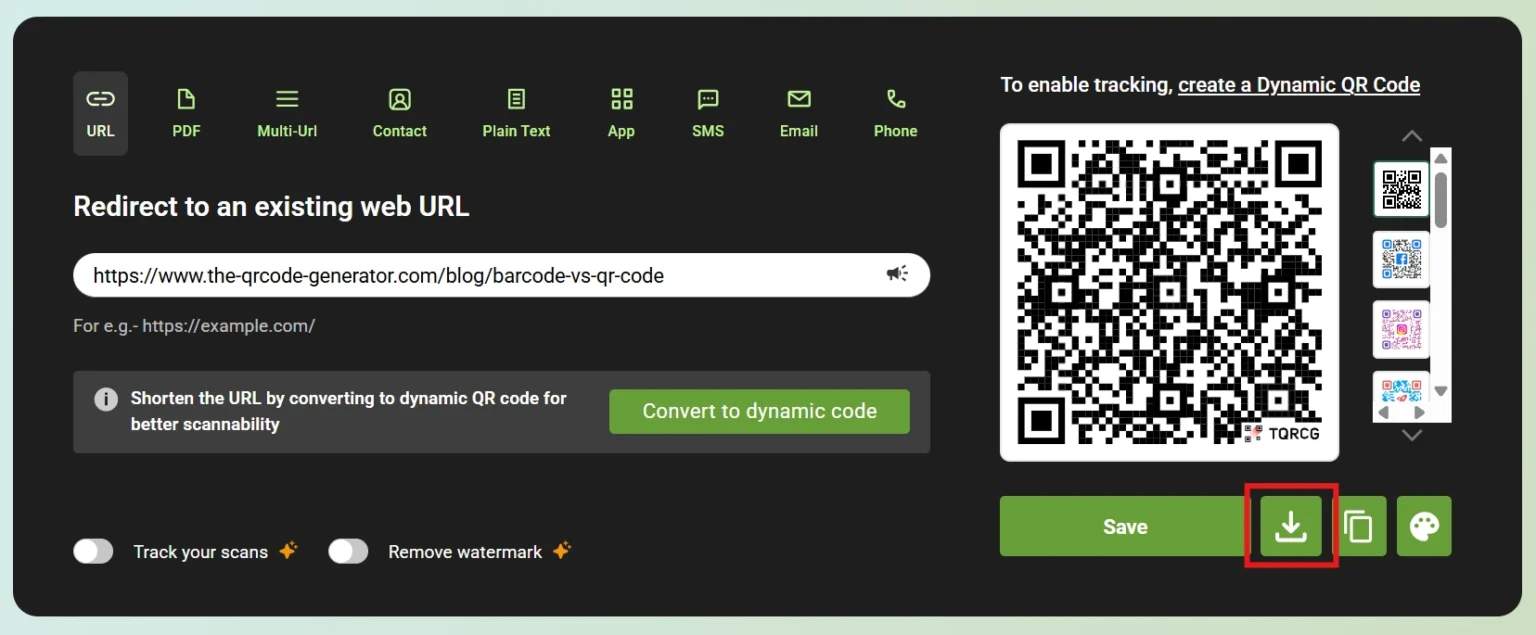
The QR Code will be saved locally to your device. You can also use the copy button and paste the QR Code onto your existing design.
Feature comparison: The QR Code Generator vs. Google Chrome’s QR Code
| Feature | Chrome's QR Code | The QR Code Generator |
|---|---|---|
| Custom Design | ❌ | ✅ (logos, colors, frames) |
| Tracking | ❌ | ✅ (analytics dashboard) |
| Editable Content | ❌ | ✅ (update URLs anytime) |
| Multiple Formats | ❌ | ✅ PNG, SVG, EPS |