
How Apple Pay QR Codes Work and How to Get One

Harshajit
Last updated: May 28, 2026
10 min read
You’re shopping on your laptop, cart full, ready to pay. You click the Apple Pay button and nothing happens. Apple Pay was built for iPhones and iPads, not desktop browsers like Chrome or Windows. For years, that created a gap between how people wanted to pay and what checkout pages could support.
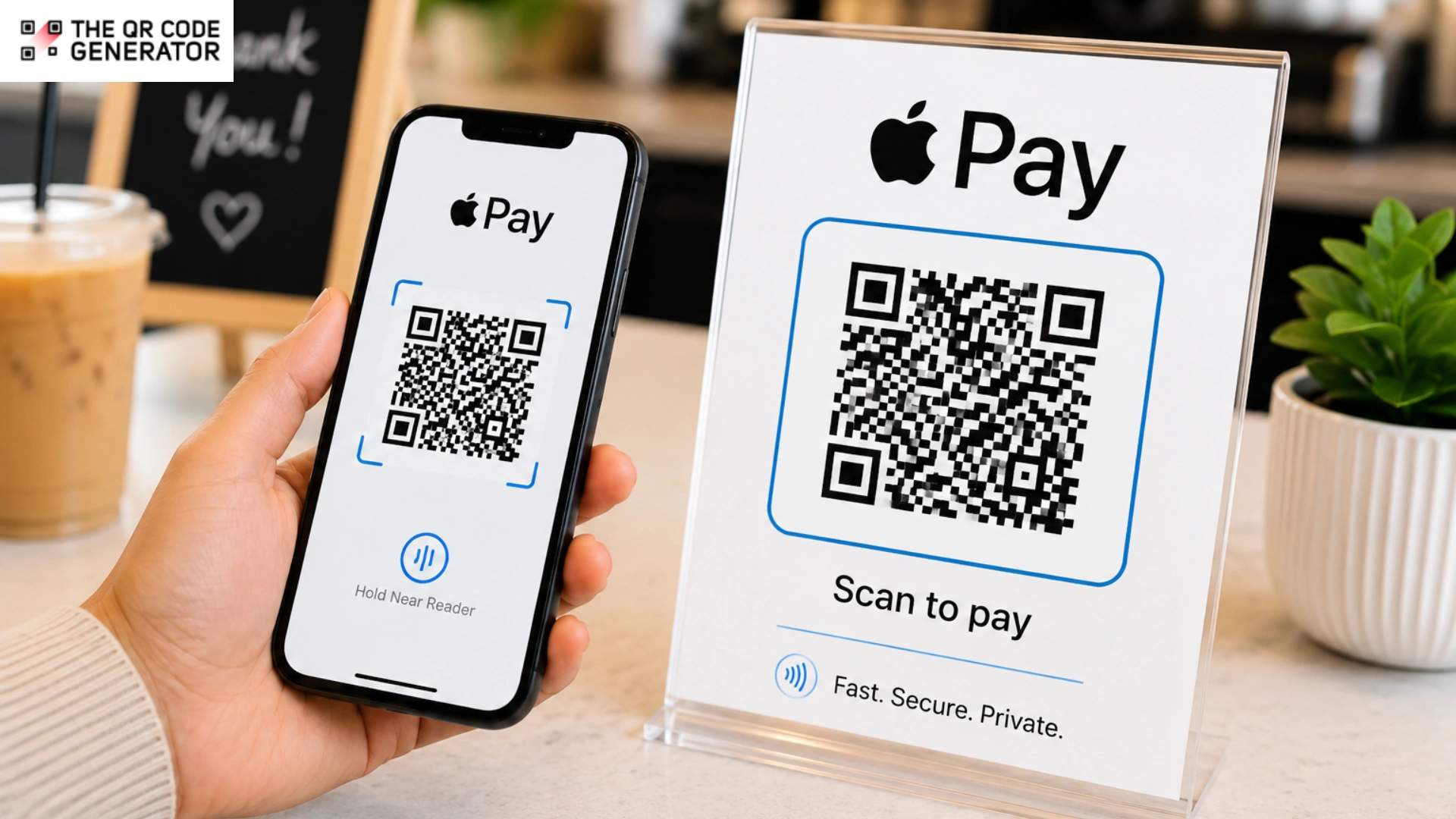
An Apple Pay QR Code is a QR Code that opens a checkout page where Apple Pay is available as a payment option. Customers can scan the code with their iPhone and complete the payment using Face ID or Touch ID. Unlike standard tap-to-pay transactions, these QR Codes help bring Apple Pay to desktop checkouts, printed invoices, restaurant tables, and other places without NFC terminals.
This guide explains how Apple Pay QR Codes work, where businesses use them, the biggest security risks to watch for, and how to use them safely.
What is an Apple Pay QR Code?
Apple Pay QR Code is a standard QR Code that links to a web checkout page where Apple Pay is accepted as a payment option. An Apple Pay QR Code is not a payment method built into Apple Wallet. Apple Wallet does not generate a QR Code that processes payments on its own.
When a customer scans the QR Code with their iPhone camera, it opens that checkout page in Safari. If the merchant has Apple Pay enabled on their site, the Apple Pay payment sheet appears automatically. The customer then confirms the payment with Face ID or Touch ID, and the transaction is done.
The QR Code itself holds no payment data. It is simply a shortcut.
What Apple Wallet actually does with QR Codes is store boarding passes, event tickets, loyalty cards, and coupons that contain QR Codes. That is not the same as making a payment through a QR Code. The two things are often confused, and that confusion leads to real misunderstandings for both businesses and customers.
How Apple Pay works and where QR Codes fit in
To understand where QR Codes fit in, it helps to know how Apple Pay was designed to work in stores.
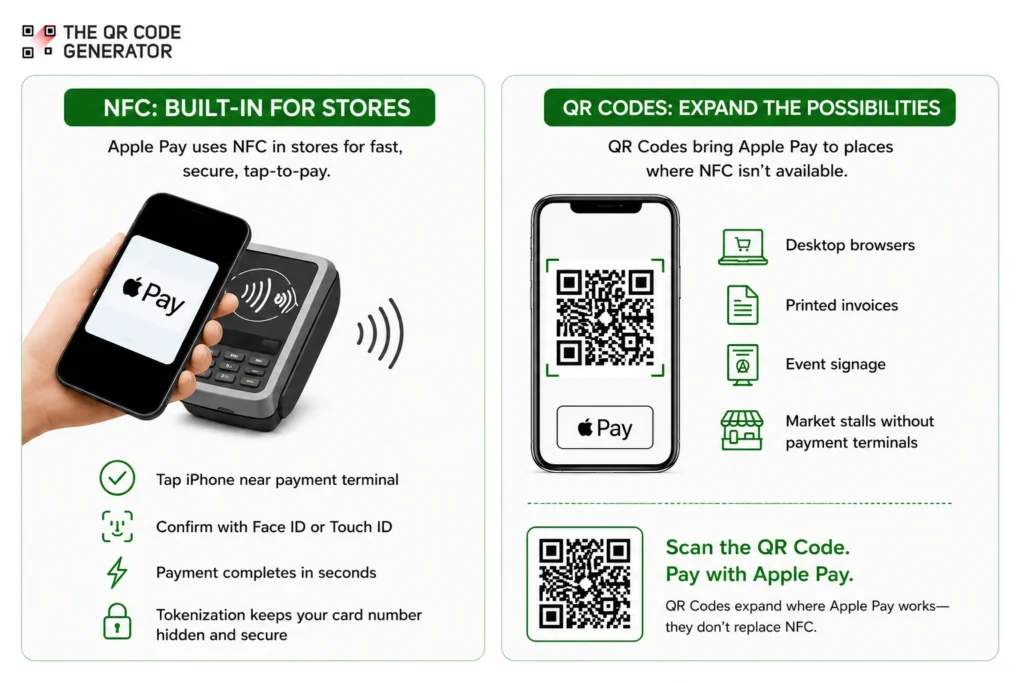
Apple Pay uses a technology called near-field communication (NFC), a short-range wireless signal. When you hold your iPhone near a payment terminal, the two devices communicate through that signal. You confirm the payment with Face ID or Touch ID, and the transaction finishes in seconds.
Apple Pay keeps your real card number hidden. Instead of sending your card details to the store, it creates a one-time code for each transaction. This process is called tokenization. It means your actual card data is never exposed during payment. According to Apple’s security overview, Apple Pay uses a unique Device Account Number and a transaction-specific security code that cannot be reused.
NFC is Apple Pay’s native in-store payment method. It is fast, built directly into iPhone hardware, and protected by Apple’s security systems from start to finish. More than 85% of US retailers accept Apple Pay at checkout. Merchant Insiders reports that Apple Pay payments usually take 5 to 7 seconds, compared to 15 to 20 seconds for chip card payments.
QR Codes solve a different problem. They help bring Apple Pay to places where NFC is unavailable, including desktop browsers, printed invoices, event signage, and market stalls without payment terminals. Instead of replacing NFC, QR Codes expand where Apple Pay can work.
Read more: NFC vs. QR Code
Apple Pay via NFC vs. Apple Pay via QR Code
NFC and QR Codes solve different problems. NFC works best for in-store payments with a payment terminal. QR Codes work best in places where a terminal is unavailable, such as desktop checkouts, invoices, and event payments. The two methods complement each other rather than compete.
| Feature | NFC (Tap to Pay) | Apple Pay QR Code |
|---|---|---|
| Setup required | NFC-enabled terminal | Checkout page plus QR Code |
| Payment speed | 5 to 7 seconds | Slower than NFC pay |
| Supports desktop checkout | No | Yes |
| Requires payment terminal | Yes | No |
| Risk of fake codes | None | Present, if not verified |
| Best for | In-store payments | Desktop checkout, invoices, events |
When QR Codes for Apple Pay make sense
There are two main situations where an Apple Pay QR Code makes practical sense.
- The first is desktop checkout on non-Safari browsers. Apple Pay was historically limited to Safari on Mac devices. Most people, however, use Chrome, Firefox, or Edge on Windows or Mac, and none of those browsers natively supports Apple Pay. With iOS 18, launched in September 2024, Apple introduced a QR Code-based solution. When a customer on a non-Safari desktop browser clicks the Apple Pay button, a unique QR Code appears on screen. They scan it with their iPhone running iOS 18 or later, and the Apple Pay sheet opens on their phone. After they confirm with Face ID, the payment completes automatically on the desktop browser.
- The second use case is merchant-created QR Codes that link to an Apple Pay-enabled checkout page. A business can turn its checkout URL into a QR Code and display it anywhere. When customers scan the code on their iPhone, Safari opens the checkout page, and Apple Pay appears as a payment option. This setup is common for invoices, printed menus, event materials, and pop-up stalls where a full payment terminal is unavailable.
In both situations, the QR Code does one thing: it opens a checkout URL. Apple Pay handles the payment itself.
What Apple Pay QR Codes mean for businesses
Apple Pay QR Codes help businesses reduce checkout friction, accept payments in more places, and support customers across devices.
Fewer customers lost at the checkout page
Cart abandonment is a real cost. According to the Baymard Institute, the average cart abandonment rate is nearly 70%, with complicated checkout among the reasons. Businesses that added Apple Pay to their checkout saw an average 22.3% increase in conversion, according to a large-scale experiment run by Stripe across 50 payment methods.
Apple Pay QR Codes extend that benefit to desktop shoppers. Before iOS 18, an iPhone user shopping on Chrome had no way to use Apple Pay. Now they can. That is a meaningful change: Windows accounts for 63% of the desktop operating system market, yet iOS owns 59% of the US mobile market. A large number of shoppers have Apple Pay in their pockets and Windows on their desks, and QR Code-based checkout bridges that gap directly.
Reach customers in places without terminals
Not every business has a card terminal. Freelancers sending invoices, food stalls at markets, small pop-up shops, and service providers working on-site can all create a QR Code that links to an Apple Pay checkout page. The customer scans it, pays with their iPhone, and the transaction is done with no hardware required.
Speed and familiarity
Apple Pay has 785 million active users globally. Most of those users already know how to use it. The checkout experience is familiar, the interface is trusted, and the two-step confirmation (scan then Face ID) is fast. Businesses do not need to teach customers a new behavior.
Useful for cross-device shopping flows
Some customers browse on one device and buy on another. A QR Code at the checkout screen of a desktop experience gives those customers a clean handoff to their iPhone for payment, without making them start over, create an account, or type in card details.
How to scan an Apple Pay QR Code
Scanning an Apple Pay QR Code takes four steps.
- Open your iPhone camera. No special app is needed. The built-in camera app on iOS 11 or later reads QR Codes automatically.
- Point the camera at the QR Code. Hold it steady for a second. A notification will appear at the top of your screen.
- Tap the notification. This opens the linked checkout page in Safari.
- Complete the payment with Apple Pay. If the merchant supports Apple Pay on their site, the Apple Pay sheet will appear. Confirm with Face ID or Touch ID to finish.
The payment works the same way as any other Apple Pay transaction once the page opens. The QR Code simply replaces typing a URL by hand.
For a quick and safe way to scan QR Codes and preview where they lead before the link opens, use The QR Code Generator’s dedicated scanner. This is especially useful when scanning a code in a public space, and you want to verify the destination first.
5 real-world use cases for Apple Pay via QR Codes
Apple Pay QR Codes are most useful in situations where businesses want faster checkout without relying on payment terminals. They also help customers move easily between devices during payment.
1. Desktop e-commerce checkout. A customer fills their cart on a Windows laptop, gets to checkout, and sees an Apple Pay button. A QR Code appears on screen. They scan it with their iPhone, confirm with Face ID, and the laptop checkout completes automatically. Payment processors like Solidgate and Paysafe have all rolled out this feature following Apple’s iOS 18 update.
2. Restaurant tables without card machines. A restaurant places a QR Code on the printed receipt or the table. Customers scan it with their iPhone, which opens the payment page in Safari, and Apple Pay appears as an option. This removes the need for a server to bring a card terminal and speeds up table turnover.
3. Freelancer invoices and service businesses. A consultant embeds a QR Code in a PDF invoice. The client scans it on their iPhone, lands on a payment page, and pays with Apple Pay in seconds. No phone call, no bank transfer wait, no chasing payment.
4. Pop-up shops and market stalls. A vendor at a weekend market prints a QR Code and places it at the counter. Customers who prefer Apple Pay can scan it and pay without the vendor needing any payment hardware beyond the checkout link.
5. Event ticketing and entry. An event organizer displays a QR Code at a merchandise or donation table. Attendees scan it with their iPhones and complete the transaction via Apple Pay, with no lines, no cash handling, and no card reader needed.
Best practices for businesses using QR Codes for Apple Pay
A few simple steps can make Apple Pay QR Codes safer and more reliable for customers.
- Use dynamic QR Codes. They let you update the destination URL without reprinting the code.
- Always use HTTPS. Secure checkout pages help protect customer data.
- Display your domain name beside the QR Code. This helps customers verify where the link leads.
- Check printed QR Codes for tampering. Fake stickers placed over real codes are a common scam.
- Test the QR Code before launch. Try it on different iPhones and in real lighting conditions.
- Add a clear call to action. A short instruction helps customers know exactly what to do.
Common myths about Apple Pay QR Code Payments
Apple Pay QR Codes are often misunderstood because the QR Code itself is only part of the payment flow.
| Myth | Reality |
|---|---|
| “Apple Wallet generates a QR Code for payments.” | Apple Wallet can store passes such as tickets, boarding passes, and loyalty cards that contain QR Codes. It does not create payment QR Codes. The QR Codes used during checkout are generated by merchants or payment processors. |
| “Scanning a QR Code processes the payment directly.” | The QR Code does not process the payment. It simply opens a checkout page where Apple Pay appears as a payment option. |
| “Apple Pay QR Codes replace NFC terminals.” | NFC is still Apple Pay’s main in-store payment method. QR Codes are mainly used when NFC terminals are unavailable, such as at desktop checkout or on printed invoices. |
| “Any QR Code at checkout is safe to scan.” | Not always. Criminals can replace legitimate QR Codes with fake ones that redirect users to fraudulent websites. Always verify the destination before paying. |
Apple Pay QR Codes expand where Apple Pay can work
Apple Pay QR Codes help businesses bring Apple Pay into places where NFC payments are unavailable. They support desktop checkout, printed invoices, restaurant tables, event payments, and other situations where customers cannot simply tap a payment terminal.
The convenience comes with one important responsibility: businesses and customers need to verify where QR Codes lead before using them. A secure checkout page, a trusted domain name, and regular checks for tampering all help reduce fraud risks.
Used well, Apple Pay QR Codes make checkout more flexible without changing how Apple Pay itself works.
Frequently Asked Questions
What is an Apple Pay QR Code?
An Apple Pay QR Code is a QR Code that links to a web checkout page where Apple Pay is available as a payment option. Scanning it with an iPhone camera opens that page, where the customer can complete a payment using Apple Pay. The QR Code itself does not process any payment. It is simply a link.
How does an Apple Pay QR Code payment work?
A customer scans the QR Code with their iPhone camera, which opens the merchant's checkout page in Safari. If the page supports Apple Pay, the payment sheet appears automatically. The customer confirms with Face ID or Touch ID, and the payment is complete. In desktop browsers on iOS 18 or later, the desktop checkout is automatically confirmed once the iPhone payment is approved.
Does Apple Wallet generate QR Codes for payment?
No. Apple Wallet stores passes, including boarding passes, tickets, and loyalty cards that may include QR Codes for scanning at entry points. It does not generate QR Codes for making payments. The QR Codes used in Apple Pay checkout flows are created by merchants or payment processors.
Which devices support Apple Pay QR Code scanning?
Standard QR Codes that link to an Apple Pay checkout page can be scanned on iPhones and iPads running iOS 11 or later using the built-in camera app. However, Apple’s newer QR Code checkout flow for non-Safari desktop browsers requires an iPhone or iPad running iOS 18 or later.
Is Apple Pay QR Code payment secure?
Apple Pay itself is secure. It uses tokenization and biometric confirmation, and it doesn’t expose your real card number. The security concern with QR Codes is that a QR Code can be faked or swapped to point to a fraudulent site. While QR Codes do not weaken Apple Pay’s security model, customers should still verify where a QR Code leads before completing any payment, just as they would with any checkout link online.
Can Apple Pay QR Codes work on desktop checkouts?
Yes. Since iOS 18, when a customer on a non-Safari desktop browser clicks the Apple Pay button, a QR Code appears on screen. Scanning it with an iPhone running iOS 18 or later completes the payment via Apple Pay on the phone, and the desktop checkout is confirmed automatically.