
Free Zoom QR Code Generator for Sharing Meeting Links
Skip the hassle of sharing long meeting URLs, eliminate log-in friction for attendees, and track which events drive the highest participation.
Redirect to an existing web URL
To enable tracking,

Trusted by 4M+ users
How does a Zoom QR Code work?
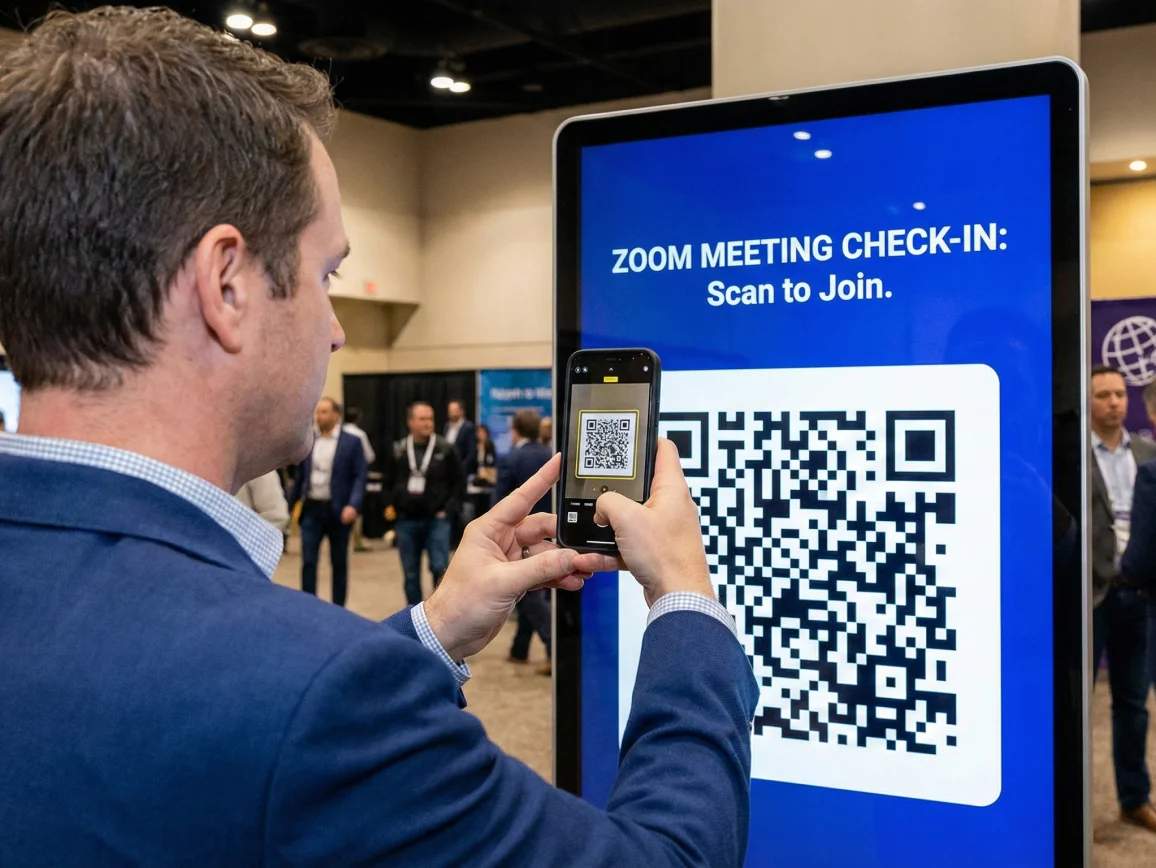
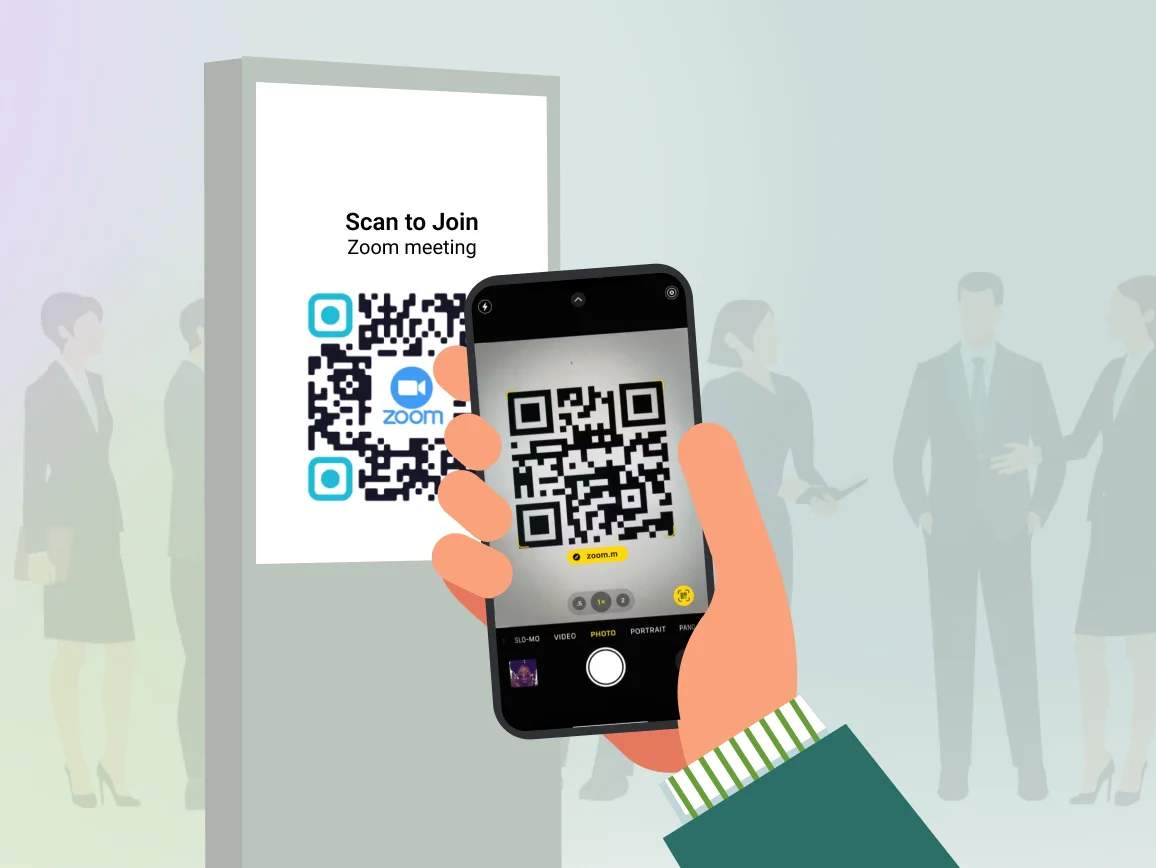
A Zoom QR Code helps you admit attendees directly to your Zoom meeting room upon scan. Attendees scan the QR Code with their smartphone camera to join meetings instantly without typing long URLs or searching for meeting IDs.
You can create QR Codes for one-time events, recurring meetings, or webinar registrations. Dynamic QR Codes let you update the Zoom link at any time without reprinting materials, making them perfect for recurring team meetings or event series.
4M+
Unique users worldwide
30,000+
Global businesses on our platform
60+
Countries with active users
Benefits of creating a Zoom meeting QR Code
Best practices to create a Zoom QR Code

Use dynamic QR Codes
Always choose dynamic QR Codes for weekly team meetings or monthly webinars. Update the Zoom link for each session without changing the QR Code on your materials.

Add clear CTA frames
Include text such as “Scan to join webinar” or “Scan for meeting access,” so attendees know exactly what the QR Code does. Don’t assume people will scan without clear instructions.

Test before sharing widely
Scan your QR Code before distributing it to ensure it links to the correct Zoom room and that meeting settings allow proper access. Check joining on both mobile and desktop devices.

Size appropriately
For conference room posters, use a minimum of 4 × 4 inches. For presentation slides, ensure the QR Code is large enough for back-row attendees to scan from their seats.

Include backup URL
Add the meeting ID below the QR Code as a fallback. Some attendees may have scanning issues or prefer to enter meeting details manually.

Set meeting permissions
Configure your Zoom meeting settings before creating the QR Code. Decide whether attendees need passwords, waiting room approval, or can join directly.
Where to place Zoom QR Codes to improve attendance?

Conference and event signage
Place Zoom QR Codes on event posters, directional signage, and registration desks for hybrid conferences. Attendees can join virtual sessions or access event-specific Zoom rooms instantly.
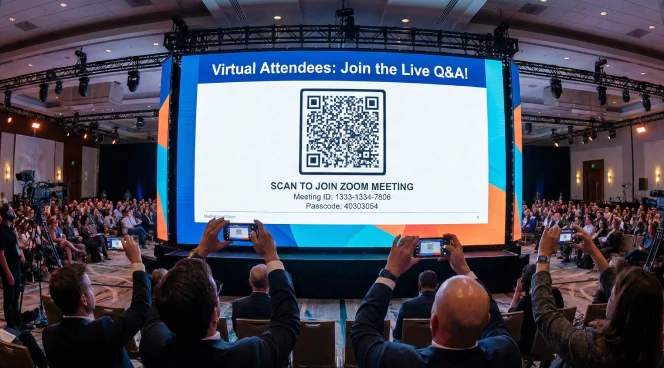
Presentation slides and digital materials
Add Zoom QR Codes to the first and last slides of presentations for live Q&A or breakout discussions. Virtual attendees can scan and quickly rejoin interactive sessions.
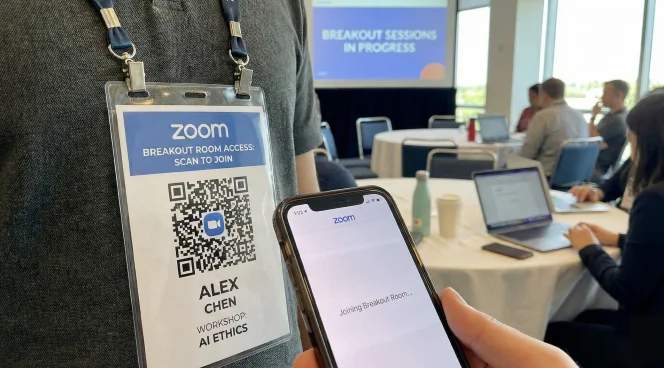
Event badges and name tags
Print Zoom QR Codes on attendee badges for workshops or networking sessions. Participants can scan to join assigned breakout rooms without searching through emails or event apps.
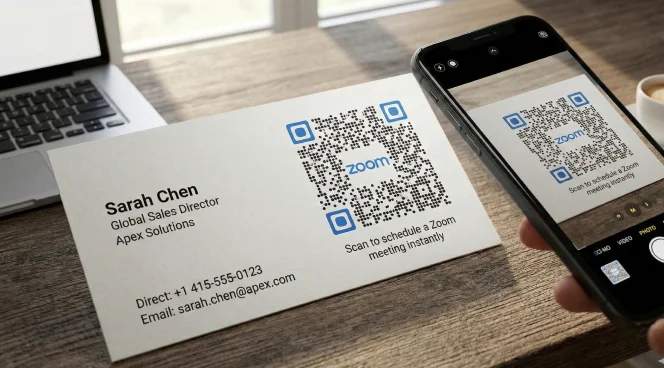
Email signatures and business cards
Include a Zoom QR Code in email signatures or on business cards for sales calls and client meetings. Prospects can scan to join your personal Zoom room with minimal friction.
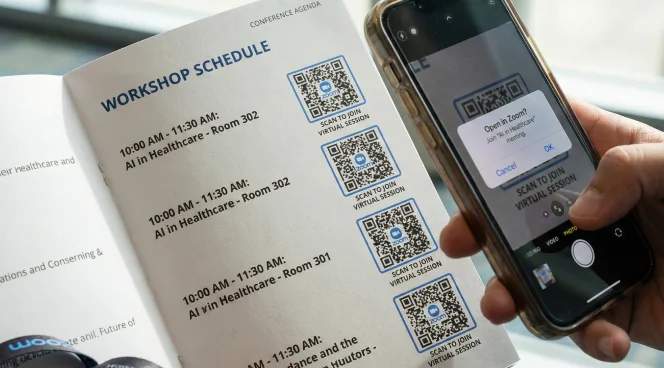
Printed event programs and agendas
Place Zoom QR Codes next to session listings in printed programs or agendas. Attendees can scan to join specific workshops or panel discussions directly from the schedule.
Which industries can use Zoom QR Codes?
Any organization hosting virtual or hybrid meetings can simplify attendee access with Zoom QR Codes.

Corporate events and conferences
Enable quick access to keynote sessions, breakout rooms, and networking events. Track which sessions generate the most attendance across multi-day conferences.
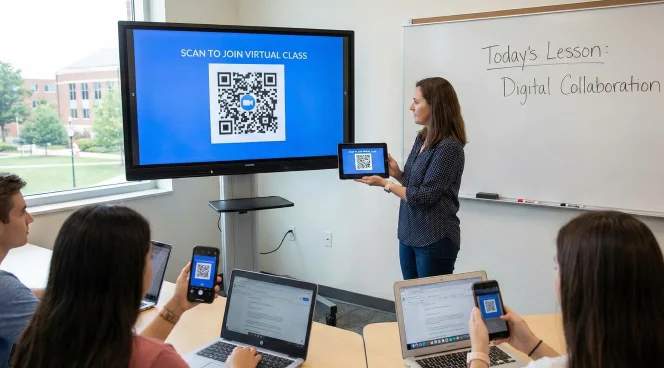
Education and training
Share Zoom links for virtual classrooms, parent-teacher conferences, and student workshops. Students scan from course materials or campus posters to join sessions.
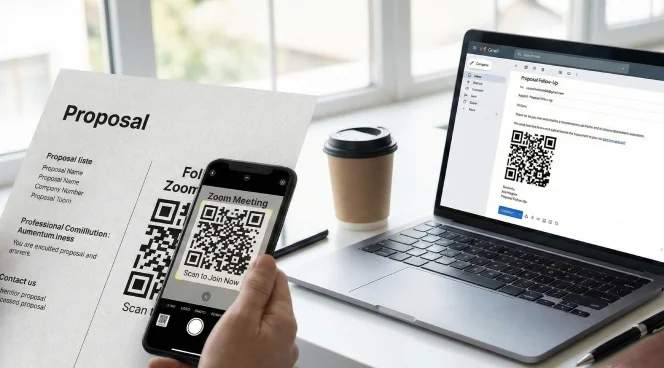
Sales and client services
Add QR Codes to proposals and follow-up emails for instant access to meetings. Clients join sales demos or support calls without scheduling back-and-forth.
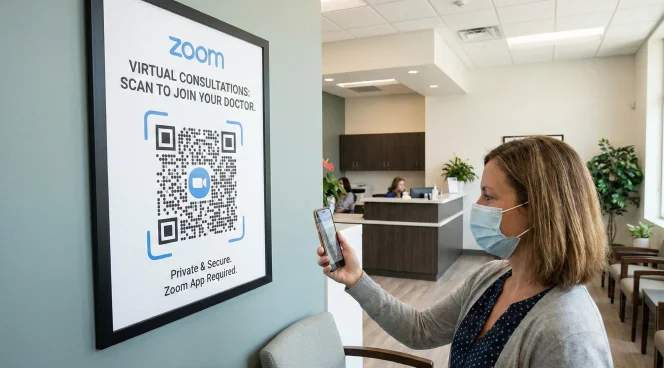
Healthcare and telehealth
Place QR Codes on appointment reminders and clinic signage for virtual consultations. Patients join telemedicine appointments with one scan.
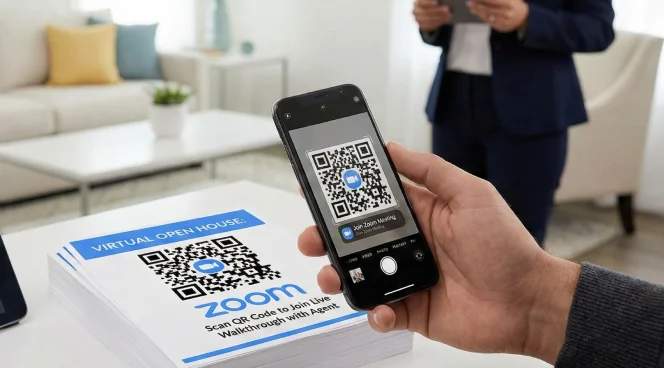
Real estate
Include QR Codes on property listings and open house materials for virtual tours. Prospective buyers join live video walkthroughs or agent Q&A sessions.
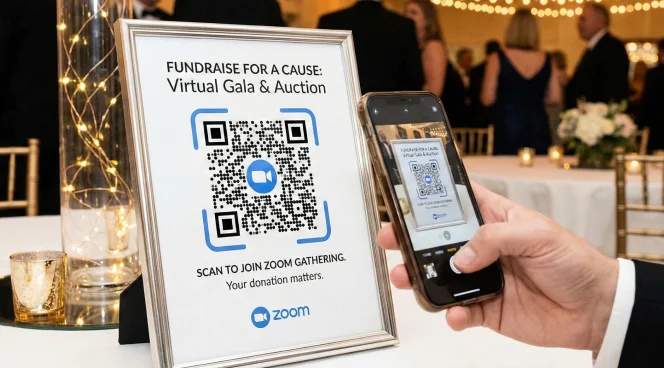
Nonprofits and community organizations
Share QR Codes for volunteer orientations, community meetings, and fundraising events. Members join virtual gatherings without technical barriers.